
Invite colleagues and manage roles
Invite colleagues to your account, assign them a role (Admin, Editor, Follower or Reader), transfer admin rights and see who did what.
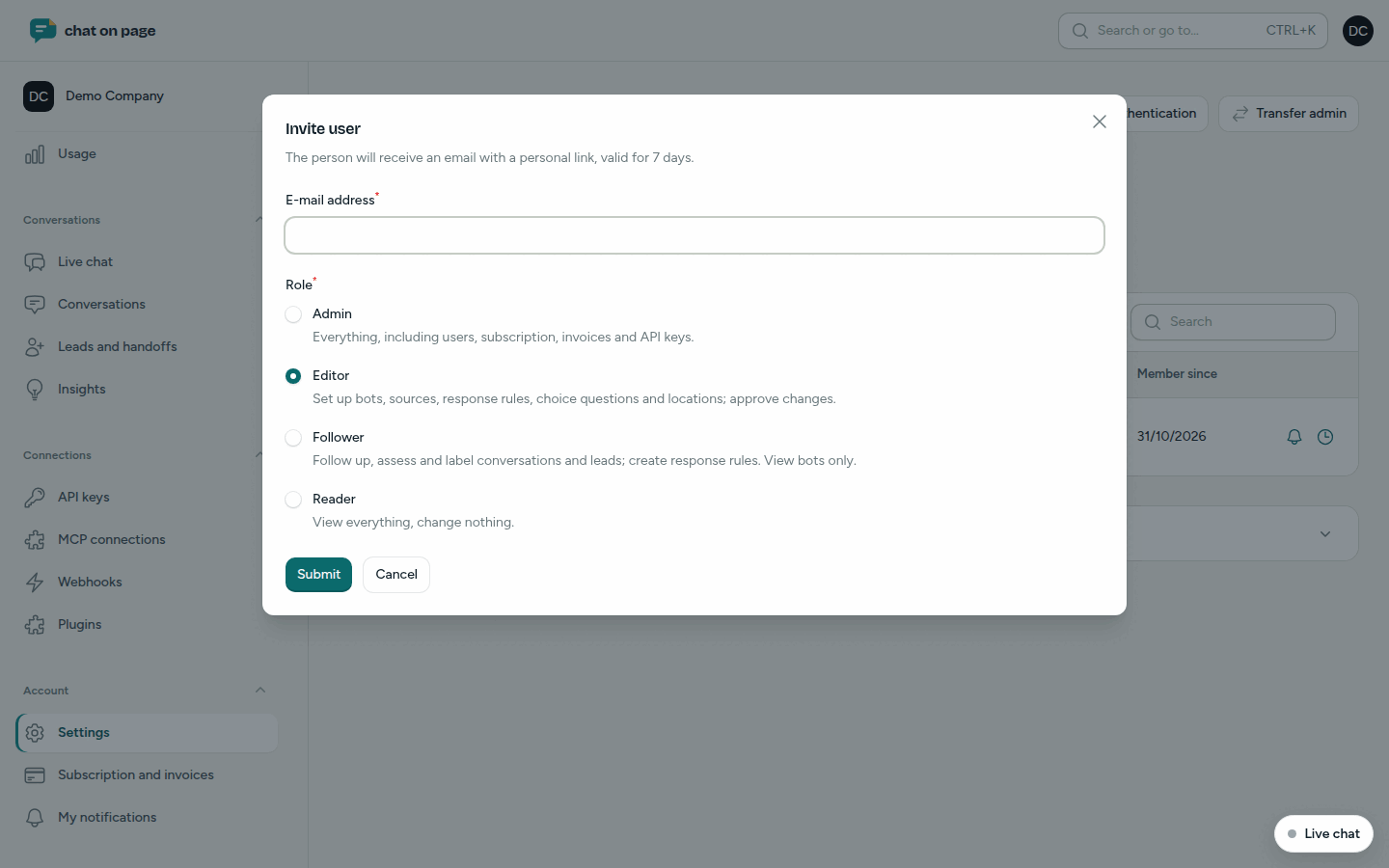
If you work with multiple people on your bots, invite your colleagues to your account. Each person gets a role that determines what they are allowed to do.
The roles
- Admin: everything, including users, subscription, invoices and API keys.
- Editor: set up bots, sources, answer rules, multiple-choice questions and locations; approve changes.
- Follower: follow up, assess and label conversations and leads; create answer rules. Bots can only be viewed.
- Reader: view everything, change nothing.
Connections, webhooks, API keys and the partner programme are reserved for the admin.
Invite a colleague
- In the menu, go to Settings and open the Users tab.
- Click Invite user.
- Enter the E-mail address and select a Role.
- Confirm. Your colleague will receive an email with a personal link that is valid for 7 days.
Under Pending invitations, you can Resend an invitation (the old link will then no longer work) or Revoke it.
How many users?
At the top of the tab, you can see how many users your plan allows and how many there already are. Pending invitations count towards this. The most extensive plan of your bots determines the number. If you exceed the limit, you will see which plan a bot will get as a result when inviting, or you will first need to remove someone. See Subscription and billing.
Change roles and transfer admin rights
- Change a role directly in the Role column.
- There must always be at least one admin.
- With Transfer admin, you choose a New admin. With Become an editor yourself, you become an editor; turn it off to remain an admin as well.
- With the delete icon, you remove someone from the account. Conversations and settings remain saved.
- With the bell icon, you choose which emails a colleague receives. See Profile and notifications.
Require two-factor authentication
Click Require two-factor authentication. Anyone who does not yet have it must set it up on their next visit to the account: with an authenticator app or a code via email. In the Two-factor authentication column, you can see who already has it.
Activity
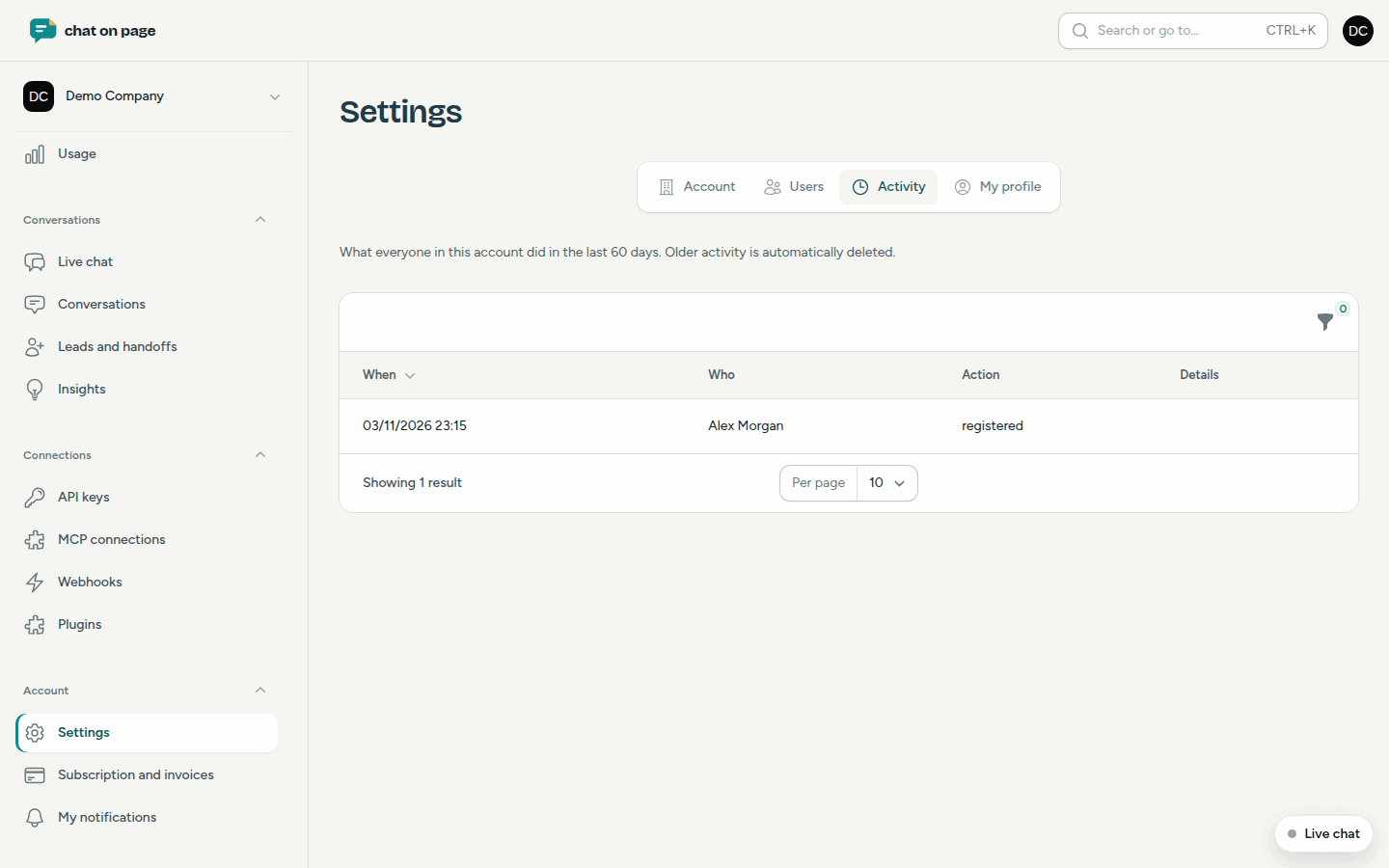
On the Activity tab, you can see who did what in the account: creating, changing, deleting, logging in, inviting and more. Filter by User, Action, Component or Period. Actions are kept for 60 days. Anyone who is not an admin can only see their own actions, under My activity in the menu.
Good to know
- Only an admin can see the Users tab.
- Someone can be a member of more than one account, with a different role per account.