
Subscription, payment and invoices
Choose a plan for each bot, link a payment method via Mollie, track your answers and download your invoices. This keeps your assistant online after the trial.
On the Subscription and invoices page, you select the plan for your bots, enter your billing details, link a payment method and find your invoices. Only the account administrator can see this page.
The trial period
A new account starts with a free trial period. You will receive an email three days before it ends. If the trial ends without a payment method, the assistant on your website will be paused. Your settings, knowledge and conversations will be preserved. If you then link a payment method, the assistant will be reactivated immediately.
Setting up your subscription
- In the menu, go to Account → Subscription and invoices.
- Plan and usage: select a plan for each bot. Each bot has its own plan; the monthly invoice adds up the plans of all your bots. Under What’s included in each plan? you can see the differences. Your choice applies after the trial, or from the next invoice.
- Billing details: enter your address and VAT number. These will appear on your invoices.
- Payment method: link a credit card or SEPA direct debit via Mollie (sometimes also PayPal or Apple Pay). You will then pay automatically each month.
- Invoices: here you will find each invoice as a PDF. If there is an outstanding invoice, you can pay it with Pay.
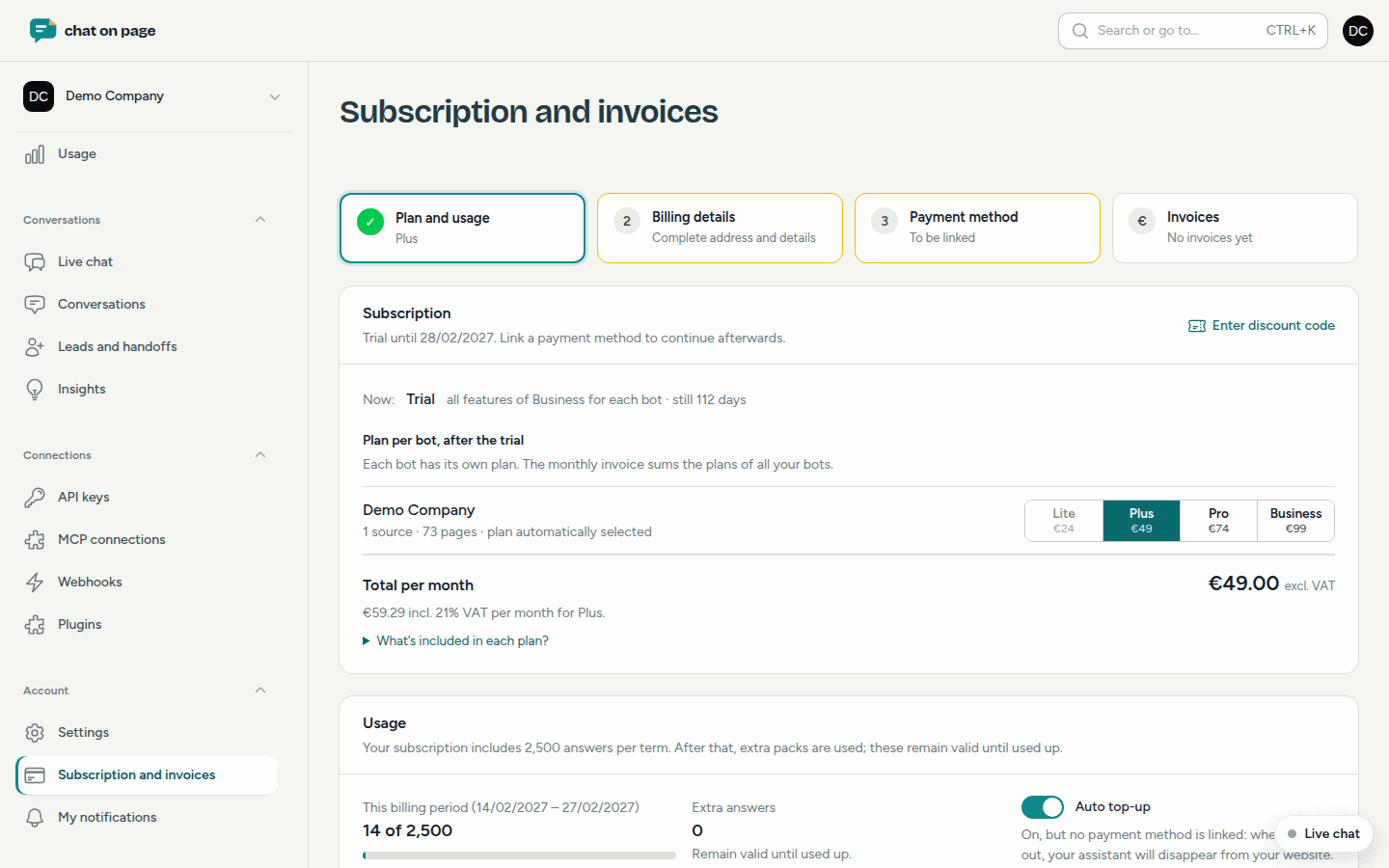
The prices are listed on the website and under Plan and usage, always excluding VAT. If you have a Discount code, enter it via Enter discount code: it provides a number of months of free usage.
Answers and extra packages
Your subscription includes a certain number of answers per term. Under Plan and usage, you can see how many you have already used. If they run out, Extra packages will be used. A package provides additional answers and an equal number of additional pages, and remains valid until it is completely used up.
- Buy a package with Buy.
- With Auto top-up enabled, Chat on Page will purchase a suitable package as soon as everything is used up. You will receive an email in advance when it is almost out.
- If it is disabled and everything is used up, the assistant will disappear from your website until you buy a package or the next term begins.
Cancelling
Click on Remove payment method and cancel subscription. No new invoices will be issued, and your assistant will continue to work until the end of the paid period. You can always start again.
Good to know
- If an invoice remains unpaid, the subscription will be suspended after a while and the assistant will disappear from your website.
- You will also receive your invoices by email, and via Peppol if your company is registered there.
- To see how many users your plan allows, read Team. To see the daily usage, go to Usage.