
Profile, notifications, account settings and trash
Change your name, password and two-factor authentication, choose which emails you receive, set up your account and restore a deleted bot.
You can find your personal details, notifications and account settings in a few fixed locations. Here’s where to look.
My profile
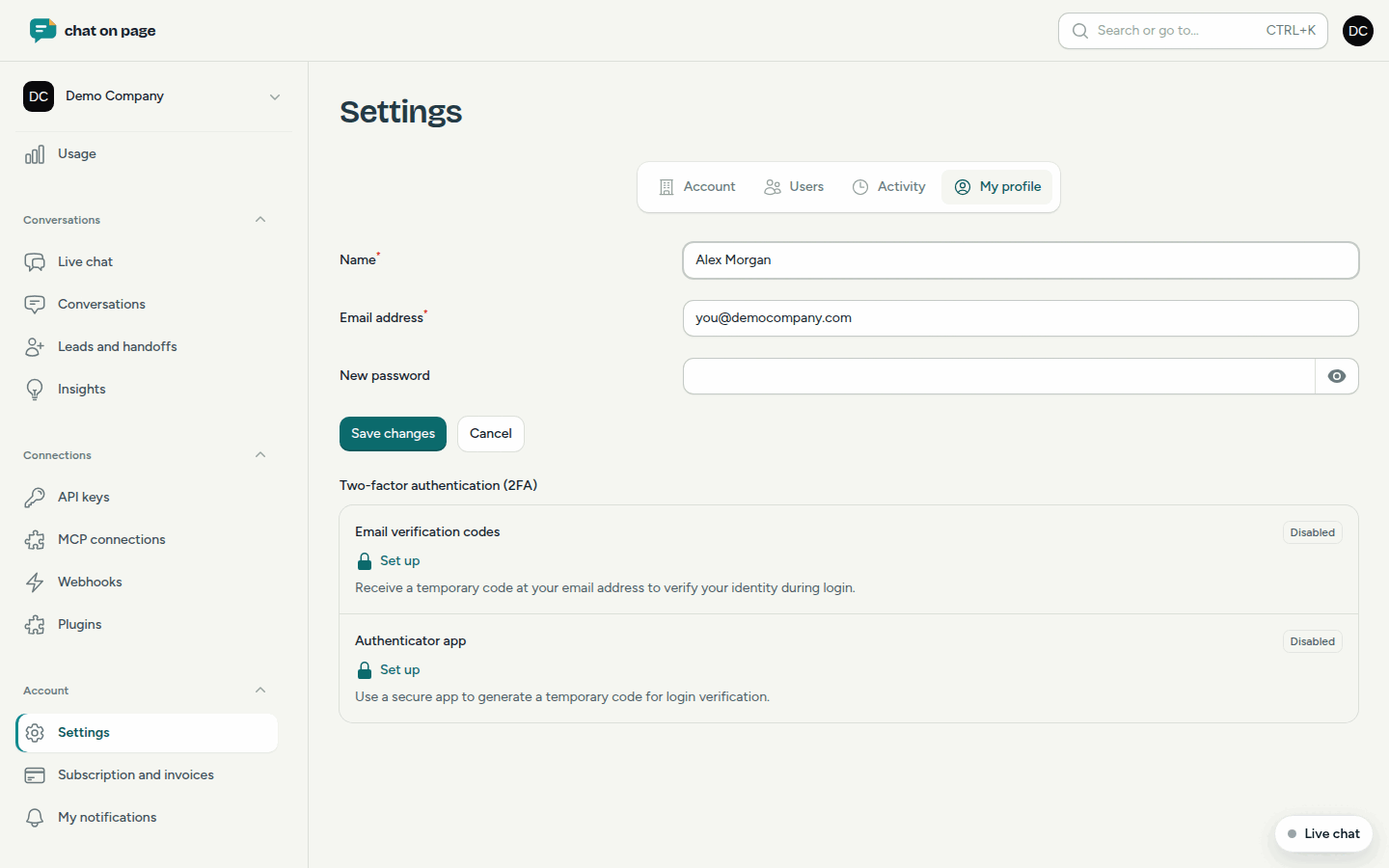
- In the menu, go to Account → Settings, or click your name in the top-right corner and select Settings.
- Open the My profile tab.
- Change your name, email address or password and click Save.
For two-factor authentication, choose an Authenticator app or Verification codes by email. Click Set up next to your choice and follow the steps. If you use an authenticator app, you’ll receive recovery codes. Store these securely.
You can change the language of the portal and your emails in the menu under your name, at Language.
My notifications
- In the menu, go to Account → My notifications.
- Tick the emails you want to receive from this account, for example New leads (someone wants to be contacted), Complaints and bug reports, New insights (every 2 weeks, per bot) or Changes pending approval. Admins can also choose emails about invoicing.
- Click Save.
You’ll only see the emails your role is permitted to receive. The account’s fixed addresses (contact, support, invoicing) will continue to receive all emails. An admin can also set this up for a colleague, see Team.
Account settings
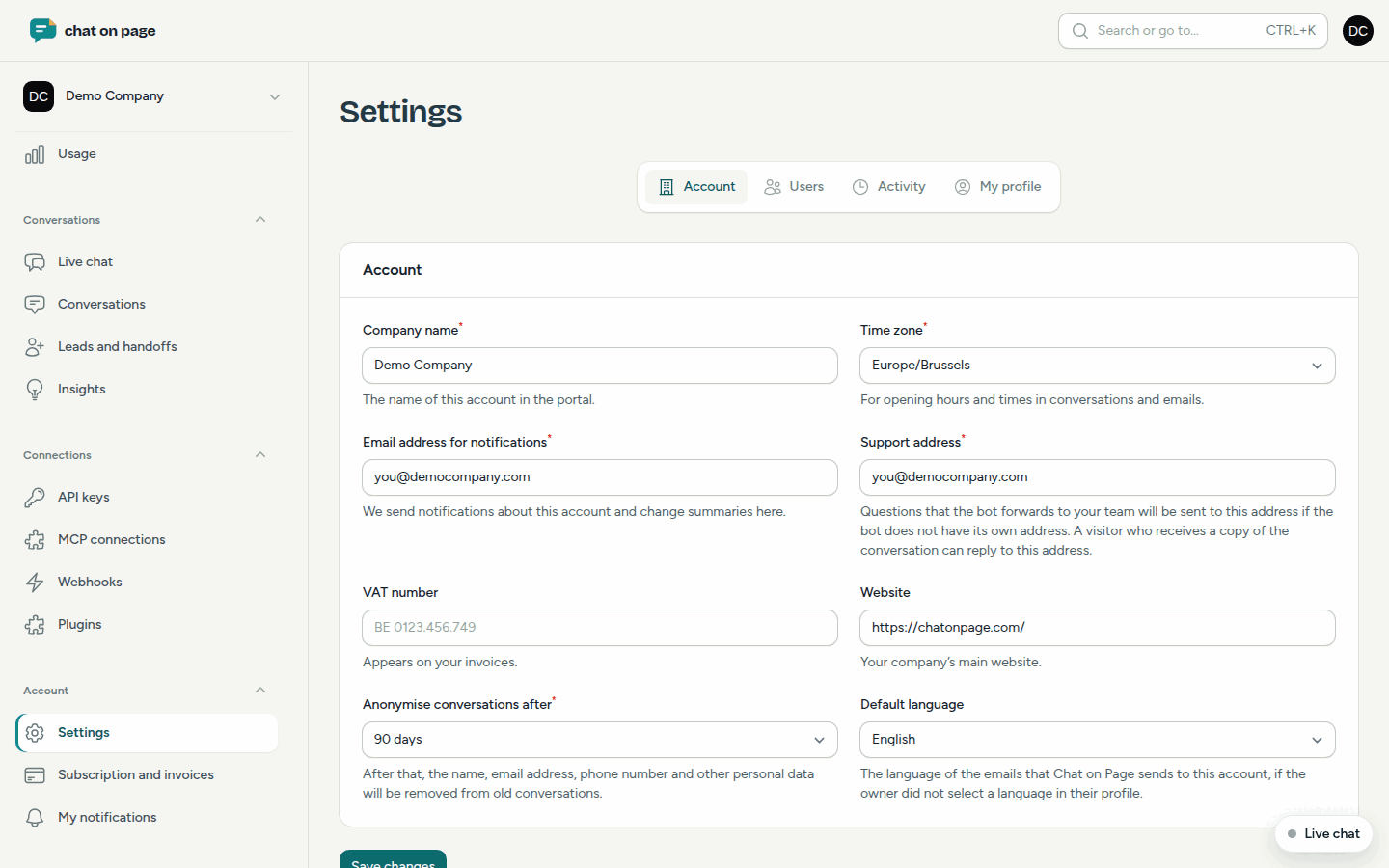
Only the admin can see the Account tab under Settings. Here, you can configure:
- Company name: the name of the account in the portal.
- Time zone: for opening hours and the times in conversations and emails.
- Email address for notifications: for notifications about the account and overviews of changes.
- Support address: this is where questions forwarded by the bot will go, if the bot doesn’t have its own address.
- VAT number and Website.
- Anonymise conversations after: 30, 60, 90 or 180 days, or 1 year. After this period, names, email addresses, phone numbers and other personal data will be removed from old conversations.
- Default language: the language of emails sent to the account, if the admin hasn’t chosen their own language.
Trash
If you delete a bot, it remains in the Trash for 7 days. This menu item appears under Bots as long as there’s something in it.
- Go to Bots → Trash.
- Click Restore next to the bot and confirm.
The bot will immediately work again on your website, with the same code. Its sources, products, locations, answer rules, choice flows and integrations will also be restored. After 7 days, everything will be permanently deleted.
Good to know
- Only users who can create bots (Admin or Editor) can restore them.
- Manage users and their roles under Team, and your subscription under Subscription and invoicing.