
Use your bots in ChatGPT, Claude and other AI assistants (MCP)
Connect Chat on Page as a connector in ChatGPT, Claude or another MCP client. You log in, select the bots and the assistant can ask them questions.
With the MCP server, you can use your bots in ChatGPT, Claude and other AI assistants that support the Model Context Protocol. For example, ask: "Ask our shop bot what the opening hours are." The assistant asks your bot the question and provides the answer with the sources.
Connecting
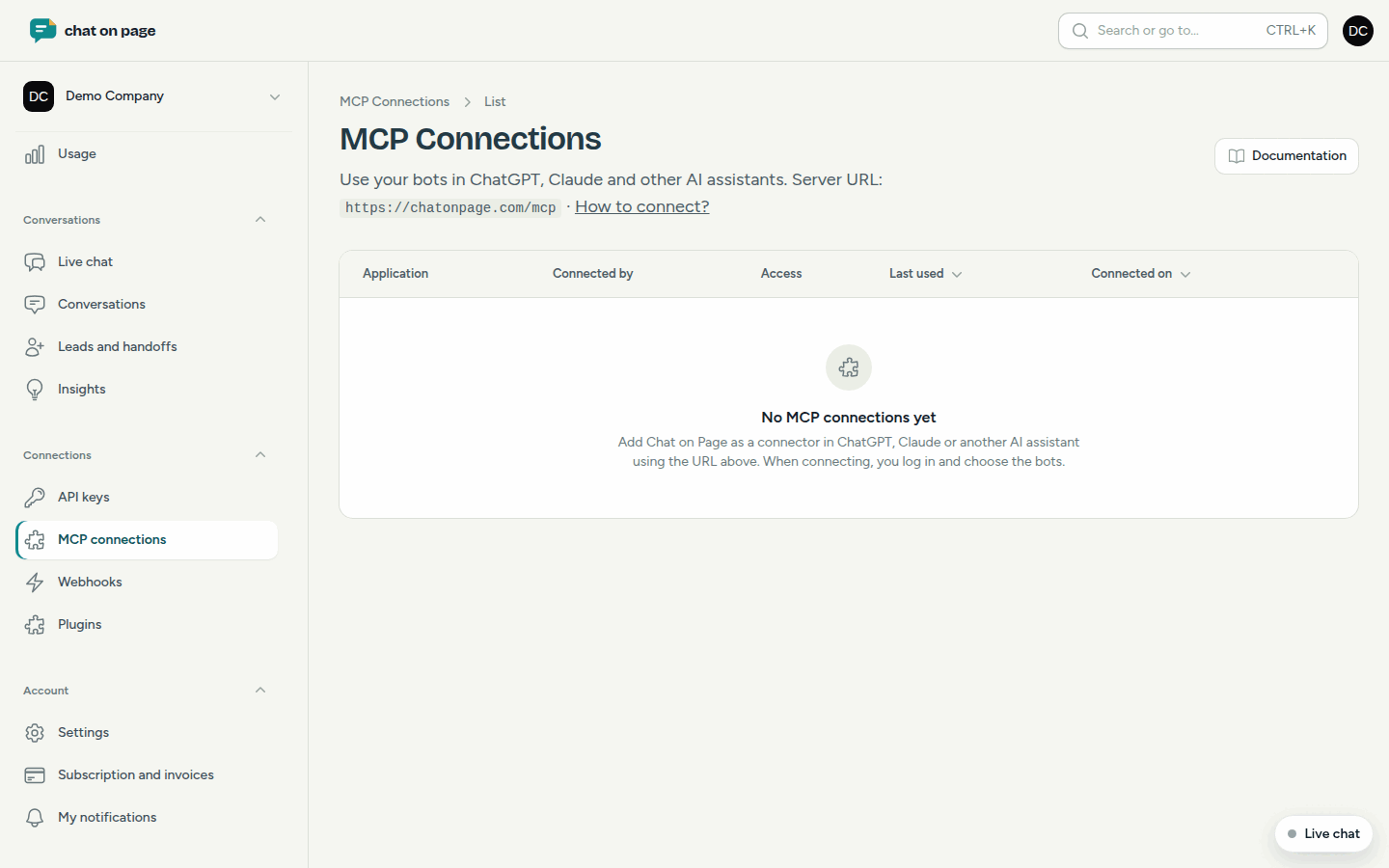
You don’t need a key. The server URL is https://chatonpage.com/mcp. You can also find it in the portal under Connections → MCP connections.
- In your AI assistant, add a new connector or MCP server with that URL.
- ChatGPT: Settings → Apps & Connectors. For custom connectors, developer mode must be enabled.
- Claude: Settings → Connectors and Add custom connector.
- Other clients, such as Cursor, VS Code or Windsurf, also work if they support Streamable HTTP and OAuth.
- A Chat on Page window opens. Log in with your usual account.
- Select the account and the bots, or all bots.
- Choose whether the assistant may also read leads. By default, it cannot.
- Click Grant access. You return to the assistant.
The steps per assistant are in the MCP documentation.
What can the assistant do?
- Without additional access: retrieve your bots, ask them questions (just like a visitor in the chat) and check available slots for reservations. Also view the numbers and insights of a bot, as these contain no personal data.
- With Access to leads: read leads, complaints, bug reports, reservations and conversations, and adjust the follow-up. Adjustments can only be made if the person who connected has permission in the account (not with the Reader role).
- With Manage content: adjust FAQs, sources, quote forms and reservations, for example "Close reservations on 24 and 25 December".
Managing connections
- In the menu, go to Connections → MCP connections.
- For each Application, you see who connected it, the Access and when it was Last used.
- Click Access to adjust the bots, Access to leads or Manage content.
- Click Disconnect to revoke access immediately. You can always reconnect from the application.
Good to know
- You adjust your own connections yourself. The account administrator sees and manages everyone’s connections.
- You always create a connection from the AI assistant, not in the portal.
- Do you want to access your bots from your own software? Use the API.
Another question? Our assistant will help you right away.