
Forward leads with webhooks
With a webhook, new leads, complaints and reservations are immediately sent to your CRM, Zapier, Make or custom software, signed and with automatic retries.
With a webhook, Chat on Page sends every new lead, complaint or reservation immediately to an address of your choice. Useful for Zapier, Make, a CRM without a ready-made connection or your own software.
Creating a webhook
- In the menu, go to Connections → Webhooks.
- Click New webhook.
- Fill in:
- Name: so you know later what it is for.
- URL: the address you receive from your CRM, Zapier or Make.
- Events: what you want to forward.
- Under Access to all bots, choose all bots, or turn it off and select specific bots under Bots.
- Click Create. You will now see the webhook’s secret. Copy it.
- Click Test on the webhook to send a first message.
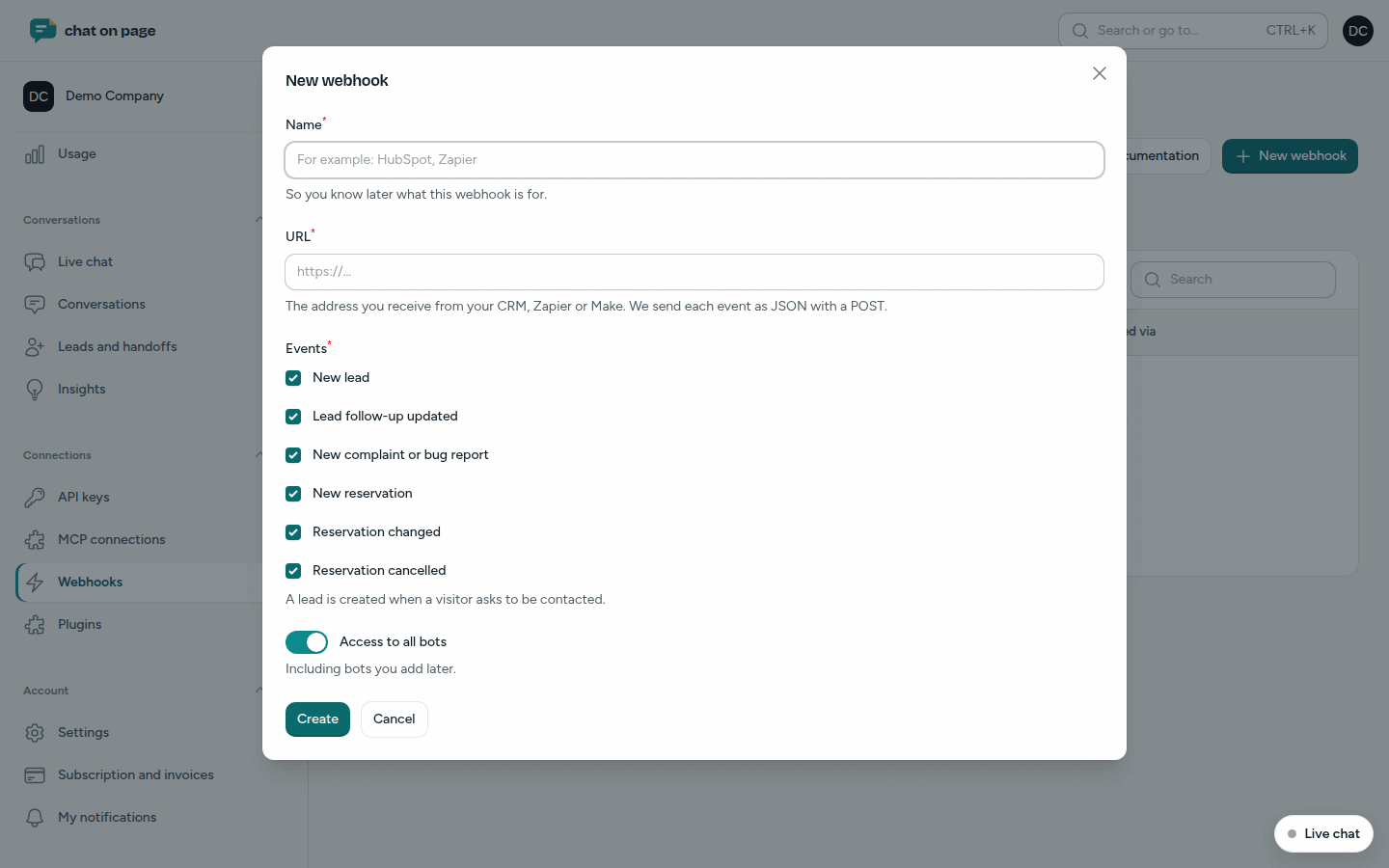
Which events?
- New lead: a visitor requests to be contacted.
- Lead follow-up updated
- New complaint or bug report
- New reservation, Reservation changed and Reservation cancelled
Each event is sent as JSON via a POST request. To see which fields are included, refer to the API documentation.
Verifying the signature
Each message includes a signature in the X-ChatOnPage-Signature header. Verify this with the secret to confirm the message is from Chat on Page. You can find the secret under Secret. There, you can also generate a New secret. Replace it with the recipient as well, because from that moment on, messages will be signed with the new secret.
If a delivery fails
- If the recipient does not respond with a 2xx code, Chat on Page will retry: after 1 minute, 5 minutes, 30 minutes, 2 hours, 6 hours and 12 hours.
- Under Deliveries, you can see the latest messages and the recipient’s response.
- If 5 consecutive events fail, the webhook will be Disabled. This also happens immediately if the recipient responds with 410 (Gone).
- You will then receive an email: "Webhook ... is disabled".
- If the recipient is working again, click Enable and then Failed to resend. This resends the failed events from the past 7 days.
Good to know
- Only the account administrator (role Admin) can view and manage webhooks.
- Use Pause to temporarily disable a webhook.
- Leads always remain in the portal, even if a webhook fails. See Leads.
- Webhooks created via the API by software are also listed. See API.
- If you use Slack, Teams, HubSpot, Pipedrive or a helpdesk, the bot connections are simpler.