
Connect your bot to Slack, Teams, your CRM or helpdesk
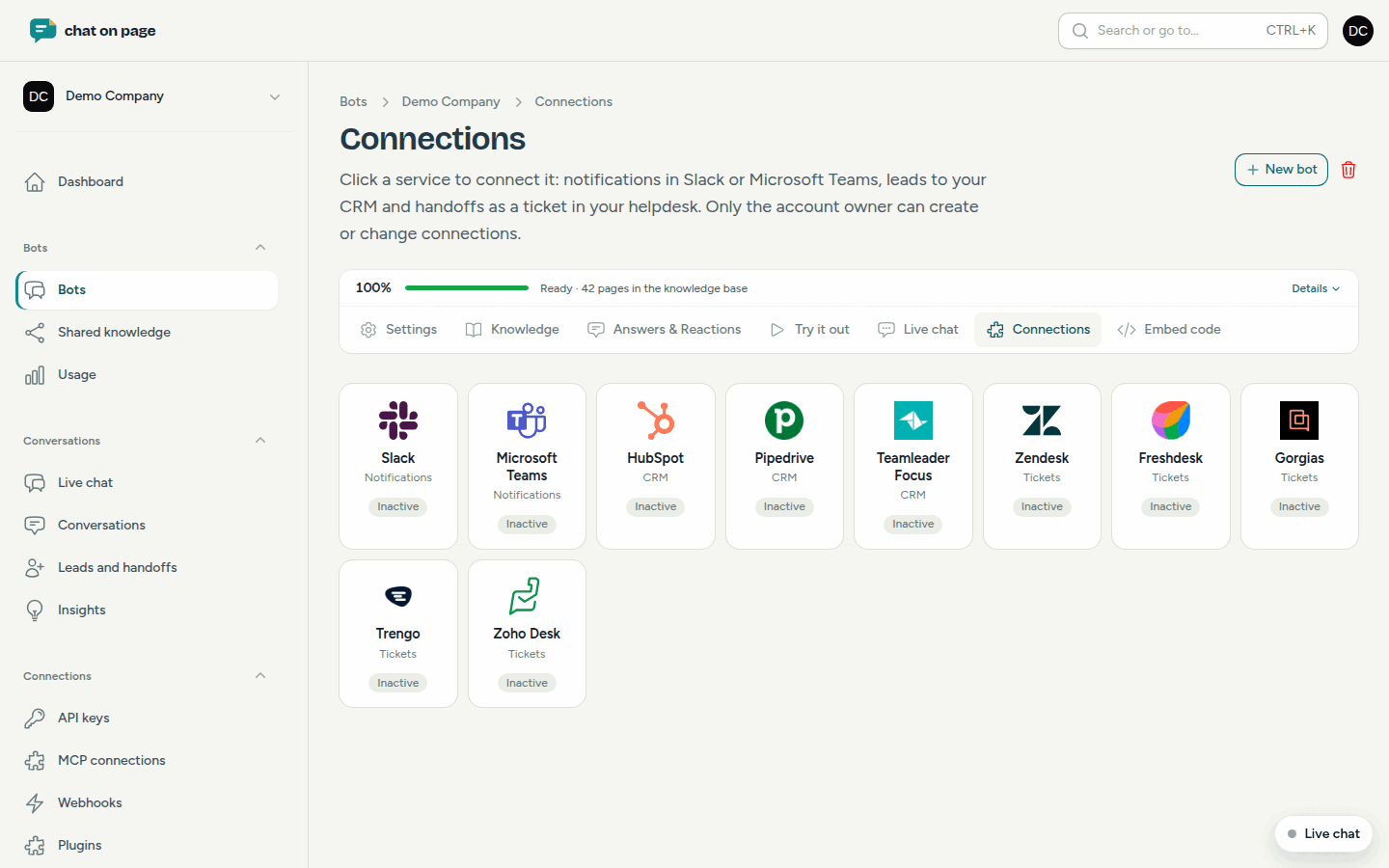
Receive **Notifications** in Slack or Microsoft Teams, send leads to HubSpot, Pipedrive or Teamleader, and turn transfers into tickets in your helpdesk.
With Connections, your bot immediately forwards what happens in the chat to the tools your team already uses. This way, you don’t need to check the portal to notice a new lead or complaint.
What can you connect?
- Notifications in Slack or Microsoft Teams: for a transfer to an employee (new lead), a complaint or bug report, a response a visitor did not like, or a new, modified or cancelled reservation.
- CRM: HubSpot, Pipedrive or Teamleader. For every transfer with an email address, Chat on Page looks up the contact (or creates it) and adds a note with the question and a link to the conversation. New reservations are also included.
- Tickets: Zendesk, Freshdesk, Gorgias, Trengo or Zoho Desk. If the bot cannot answer a question, it becomes a ticket with the visitor as the requester and the conversation attached. If you reply in the helpdesk, the visitor receives it by email.
Setting up
- Open your bot and select Connections.
- Click on the tile of the service.
- Fill in what the window asks for:
- Slack or Teams: the Webhook URL of the channel, a Name, and under Report to, the events.
- HubSpot: an Access token from a private app. Pipedrive: your API token. Leads go to the Leads Inbox in Pipedrive.
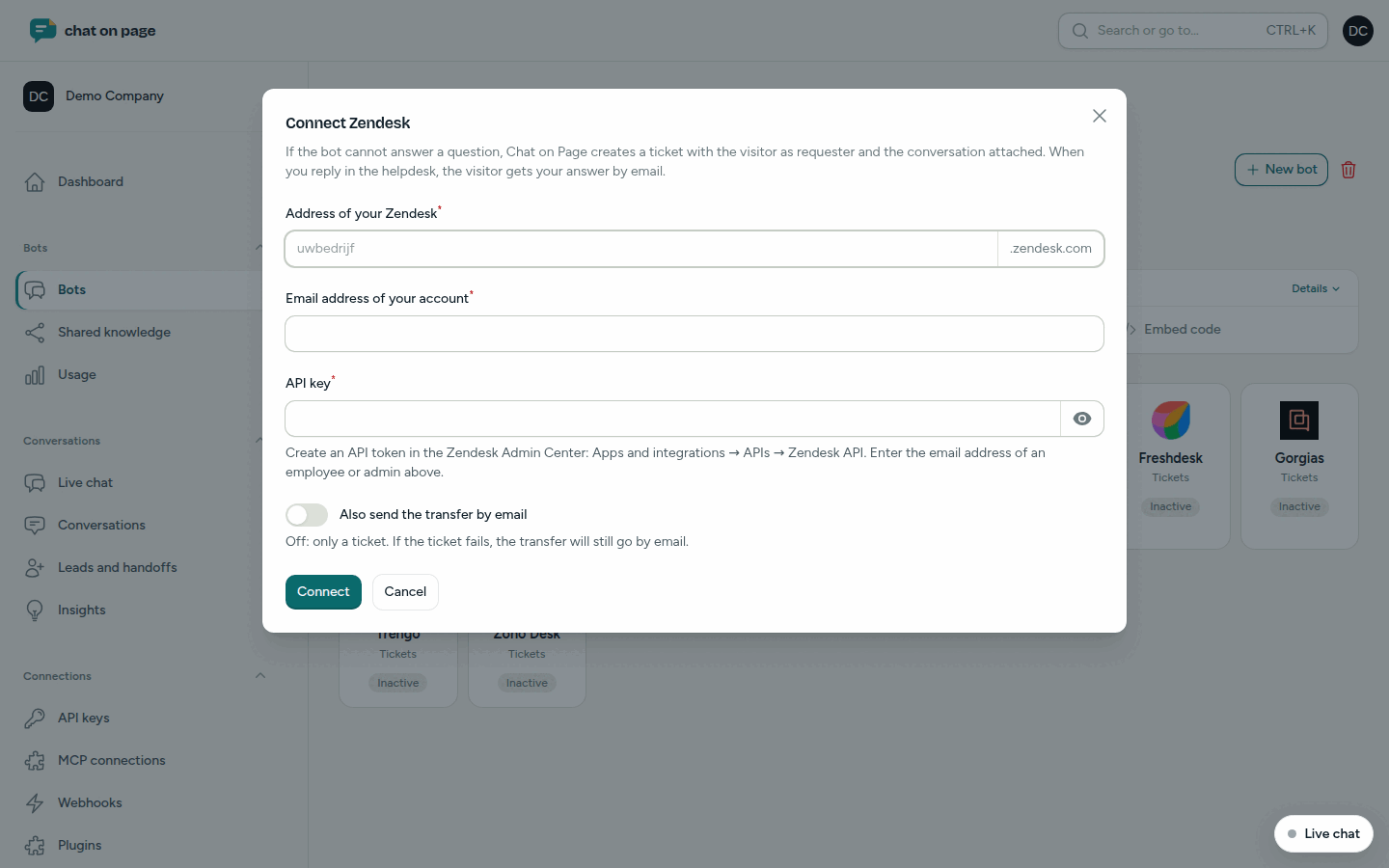
- A helpdesk: the address, optionally the email address of your account, and the API key. For Trengo, you then select the Channel in Trengo; for Zoho Desk, the Department in Zoho Desk. Zoho Desk is connected via a login at Zoho.
- Click Connect. Chat on Page tests the details immediately. Slack and Teams receive a first message.
Teamleader works via a login at Teamleader. See Connect Teamleader.
Managing
Under Your connections, you see for each connection what it Forwards to and the Status: when it was last used, or an error message. With the Active toggle, you can temporarily disable a connection. Via Edit, you adjust the events, and with Test message, you send a test message to Slack or Teams.
Good to know
- Only the account administrator (role Admin) can create or modify connections. Other roles can only view the page. See Team.
- Per bot, you connect one helpdesk. A new choice replaces the previous one.
- With Also send the transfer by email off, you only get a ticket. If the ticket fails, the transfer is still sent by email. See also Reply email.
- A CRM only receives leads with an email address.
- Want to send to another system, Zapier or Make? Use webhooks.
Another question? Our assistant will help you right away.