
The reply email with a suggested answer
If the bot cannot handle a question itself, your team will receive an email with a ready-made answer. Here’s how to set up the signature and the standard phrases.
If the bot cannot handle a question itself and the visitor leaves their details, your team will receive an email with a ready-made answer for the visitor. Your staff member reviews it and sends it on. On the Reply email page, you choose how that answer is signed and how it starts and ends.
What’s in the email?
- A suggested answer, in the visitor’s language, with your salutation, introduction, closing and signature.
- An internal section (to be removed before sending) with the visitor’s details, a summary and the full conversation.
- A link to open the conversation in the portal.
Replying is straightforward: if the visitor provided a valid email address, it will appear as the reply-to address in the email.
Setting up the email
- Open your bot and select Answers & Reactions > Reply email.
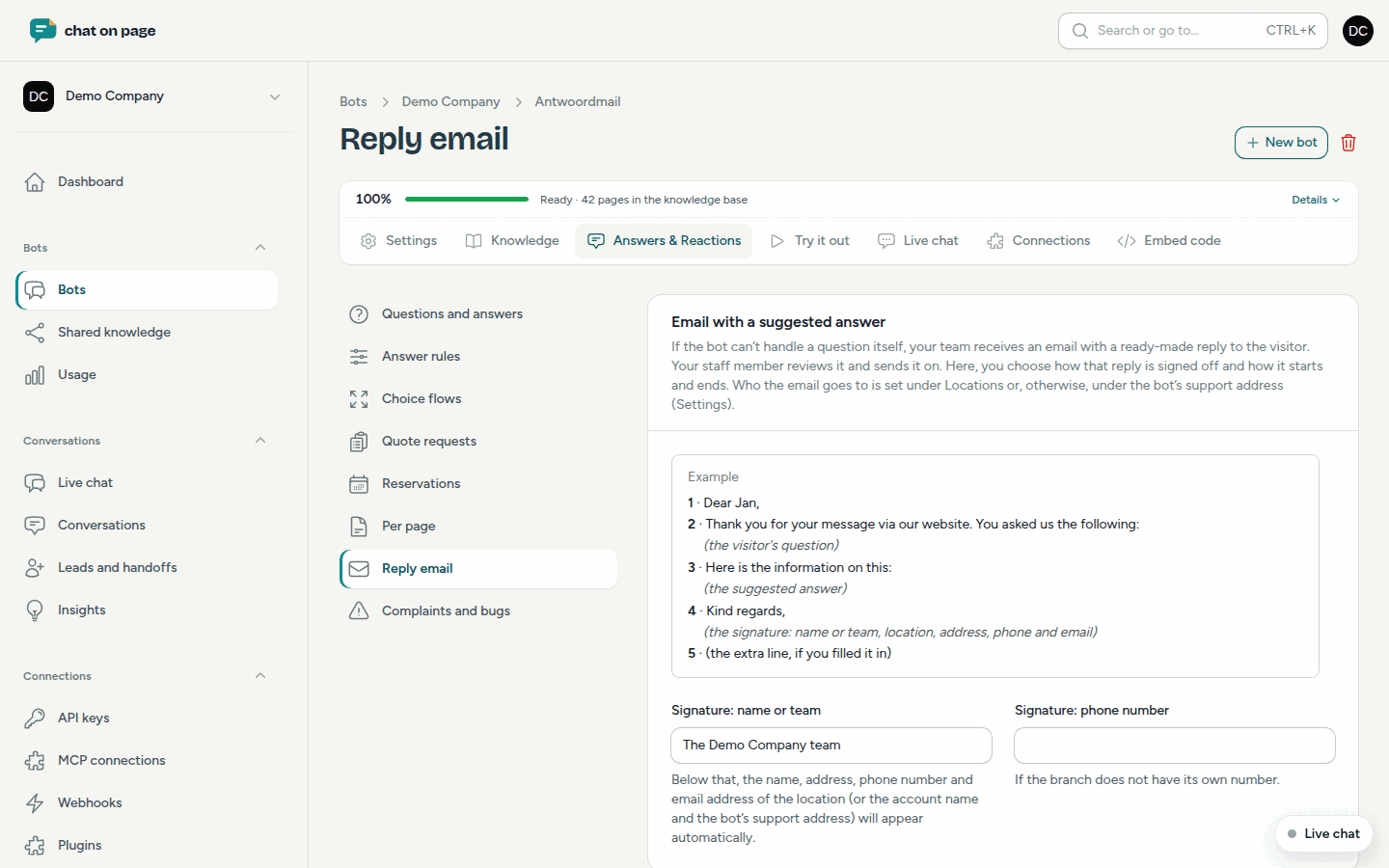
- At the top, you’ll see an Example with numbered sections.
- Under Signature: name or team, enter, for example, "The team at Example Ltd". Below this, the name, address, phone number and email address of the location—or the name of the account and the bot’s support address—will appear automatically.
- Optionally, fill in Signature: phone number. The email will use this if the location does not have its own number.
- Under Start and end of the answer, per language, select a tab for each language and adjust the texts: 1. Salutation with name, 1. Salutation without name, 2. Introduction, 3. Answer introduction, 4. Closing and 5. Extra line below the signature (optional). Use
{name}in the salutation to include the visitor’s first name. - Click Save.
If you leave a field blank, the email will use the grey default text.
Who receives the email?
The email is sent to the Handoff address (staff member) of the location the conversation relates to (see Locations). If there is no location, it goes to the bot’s support address (see General settings) or, failing that, to your account’s support address. Team members who have enabled notifications for new leads will receive a copy (see Profile and notifications).
Good to know
- Every forwarded question is also a lead. You can see under Leads and handoffs whether the email has been sent.
- If a colleague takes over the conversation via Live chat, no email will be sent.
- If you connect a helpdesk, the forwarded question may arrive as a ticket instead of, or in addition to, this email (see Integrations).
- A quote request also arrives as a reply email. The suggestion will then thank the visitor for the request, without including a price or deadline.