
Locations: addresses and opening hours
Manage addresses, opening hours and closing days for your locations so the bot always provides the correct hours and the nearest location.
Locations contain your addresses, contact details and opening hours. The bot uses them for any question about hours, address or contact, and also knows whether a location is currently open.
How it works
Chat on Page automatically detects locations and opening hours on the pages of your sources. If they are on a fixed page, set that source to Location page (addresses, opening hours). That page will then be checked more frequently. You can also add locations yourself.
If you have more than one location, the bot will ask which location the user is referring to. If a visitor asks for the nearest location, the bot will request a postcode, municipality or address and display the closest locations as buttons.
Adding or editing a location
- Open your bot and select Knowledge > Locations.
- Click Add location, or choose Edit for an existing location.
- Fill in Name, address, Phone and E-mail. With Location type (for example, "head office" or "warehouse"), the bot selects the correct location.
- Under Handoff address (staff member), enter who will receive the questions for this location.
- Add short facts under Features, such as parking or services, and under Notes for the bot, what the bot may say verbatim.
- Set the Opening hours using Add time slot. Use two slots per day for a lunch break.
- Save.
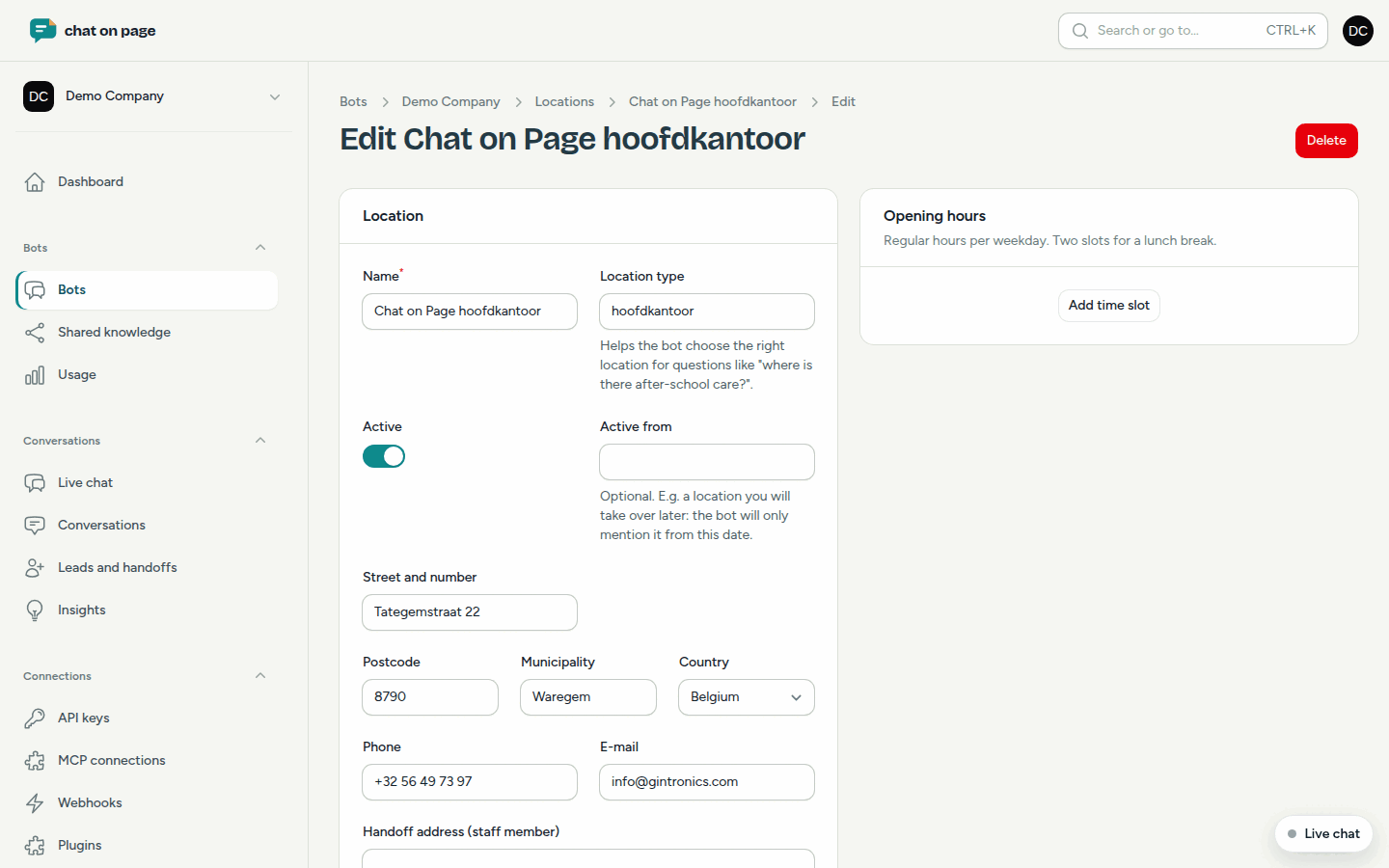
Closing days and special hours
At the bottom of the location, you will find Exceptions (closing days, different hours). Click Add exception, select the dates From and Up to and including, and the Type: Closed, Special hours or By appointment only. Optionally, provide a Reason, such as "Christmas holiday".
Changes on your website
If the hours or addresses on your website change, Chat on Page will propose the change. With Approve changes automatically enabled, they will be applied immediately. Otherwise, you will receive an email, and the change will appear under Knowledge > Changes, in the Locations and opening hours block. You will see what is changing, with old and new values, and can click Approve or Reject. As long as you do not approve, the bot will use the previous data. See Changes.
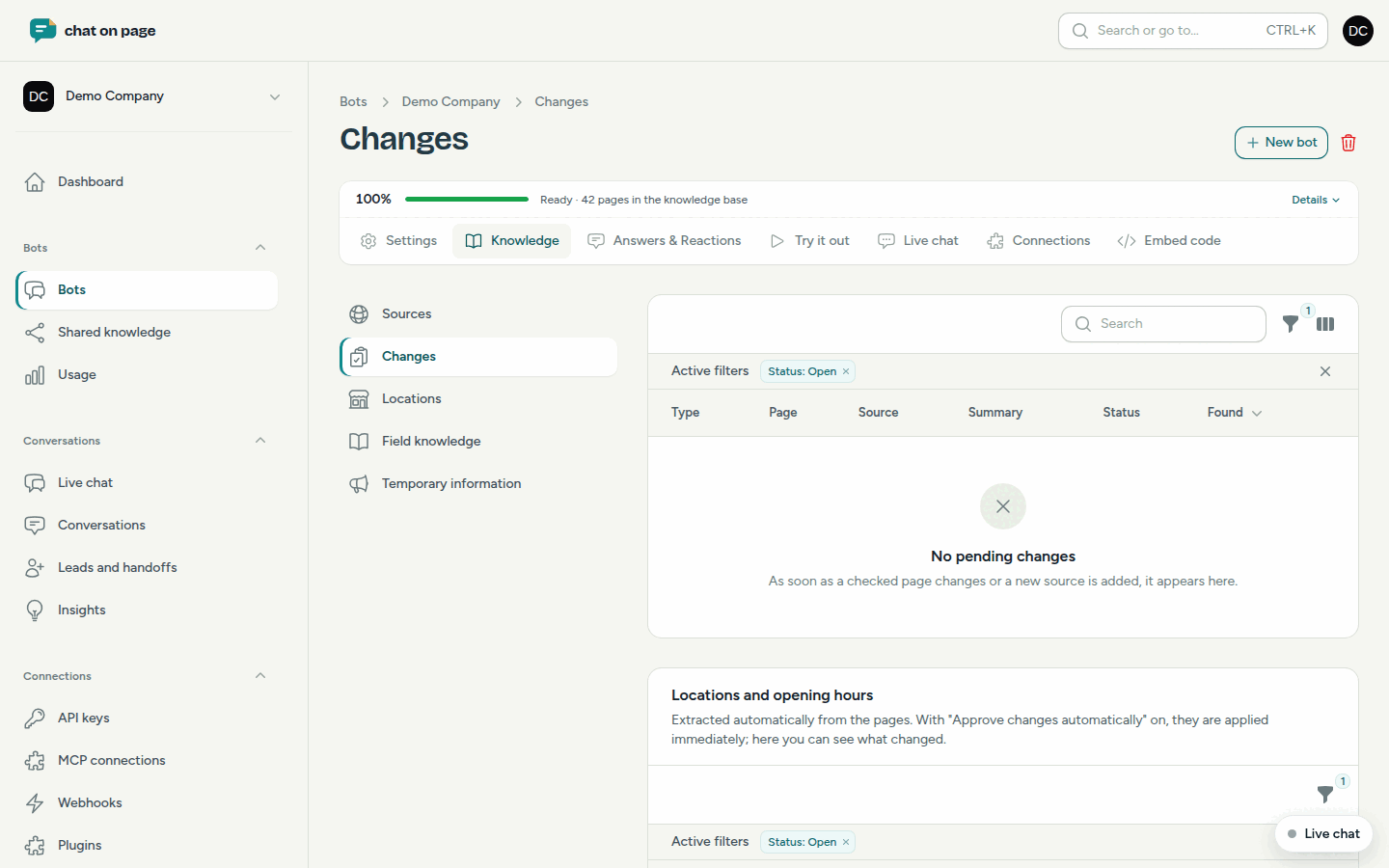
Good to know
- If you delete a location that is still on your website, it will appear in the list Don't add automatically again. It will then not be proposed again.
- The map location is automatically determined from the address. If it is incorrect, manually enter the Latitude and Longitude under Location.
- Do not include hours in questions and answers: the bot always retrieves them from the locations.