
Field knowledge: learning from answered tickets
Read answered emails and tickets, have articles created from them, and publish them for the bot and in your own help centre.
With Field knowledge, you read answered tickets and support emails. Chat on Page creates articles from them, you review them, and after publishing, the bot knows the answer.
Reading tickets
- Open your bot and select Knowledge > Field knowledge.
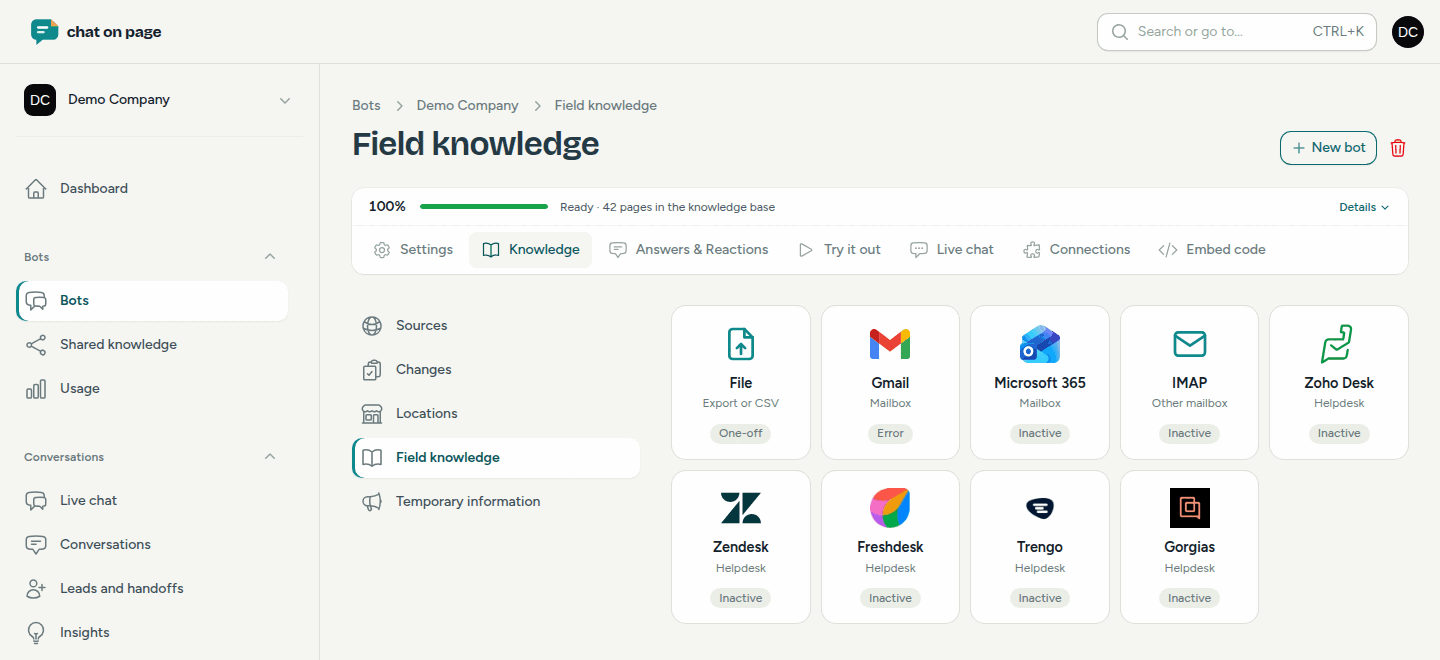
- At the top, choose where you want to read from:
- File: an export of your mailbox (.mbox, or .eml in a .zip) or a CSV with a question column and an answer column. Maximum 24 MB.
- Gmail or Microsoft 365: you log in and grant permission to read emails.
- IMAP: another mailbox, with server, username and password.
- A helpdesk: Zendesk, Freshdesk, Trengo, Gorgias or Zoho Desk.
- Fill in Your support email addresses: emails from these addresses are considered answers. Under Do not read, enter addresses or domains you want to skip.
- For a mailbox or helpdesk, choose Tickets from and whether you want to Read new tickets daily.
Chat on Page only reads. Nothing is sent, modified or deleted. For a helpdesk, only resolved tickets with their public messages are read, not internal notes.
How it works
Chat on Page filters spam and automatic emails, removes personal data (such as names, email addresses, phone numbers, addresses and order numbers) and combines similar questions into one article. If new tickets on the same topic appear later, you will receive a Proposal for change for a published article.
Reviewing and publishing articles
- New articles appear as Draft in the list.
- A warning in the Review column means there is something to check, such as conflicting answers or placeholders like [name].
- Select Edit to adjust the title, text and Subject, or Tickets behind it to see which tickets the article is based on.
- Click Publish. If you do not want an article, select Deny: you will then no longer receive new proposals on that topic.
Your public help centre
Published articles appear in a public help centre with a search function and the chat, and the bot links to them. Via Settings on this page, you configure it:
- Public help centre: off means only the bot uses the articles.
- Address: the part after /kb/ in the link.
- Custom domain (optional), such as help.yourcompany.co.uk, with a CNAME record as the form indicates.
- Automatically publish articles: new and updated articles go online immediately, unless there is something to review.
Good to know
- Read tickets count towards your page limit for one month; published articles count as long as they are published. See Usage.
- With Unpublish, you take an article offline; it remains saved as a draft.