
Products: the bot knows your catalogue
The bot recognises product pages on your website and searches your catalogue by name, brand, category and attributes.
If you have a webshop or product catalogue, Chat on Page will recognise the product pages on your website. The bot can then search your products, compare them and link to the correct page.
How it works
- You add your website as a source.
- When reading, Chat on Page recognises product pages based on the data that webshops provide to search engines (such as schema.org Product) and on characteristics of platforms like WooCommerce, Magento and Shopify.
- For each product, it stores details such as name, SKU, EAN, brand, category, price, availability, description and attributes.
- In the chat, the bot searches your catalogue by text, category, brand and attributes. It only mentions products and attributes it has actually found, and links to the product page.
Viewing the product list
- Open your bot and select Knowledge > Products.
- Search by name, SKU or EAN, or filter by Category and Brand.
- Click View to see all the details of a product, or Page to open the product page.
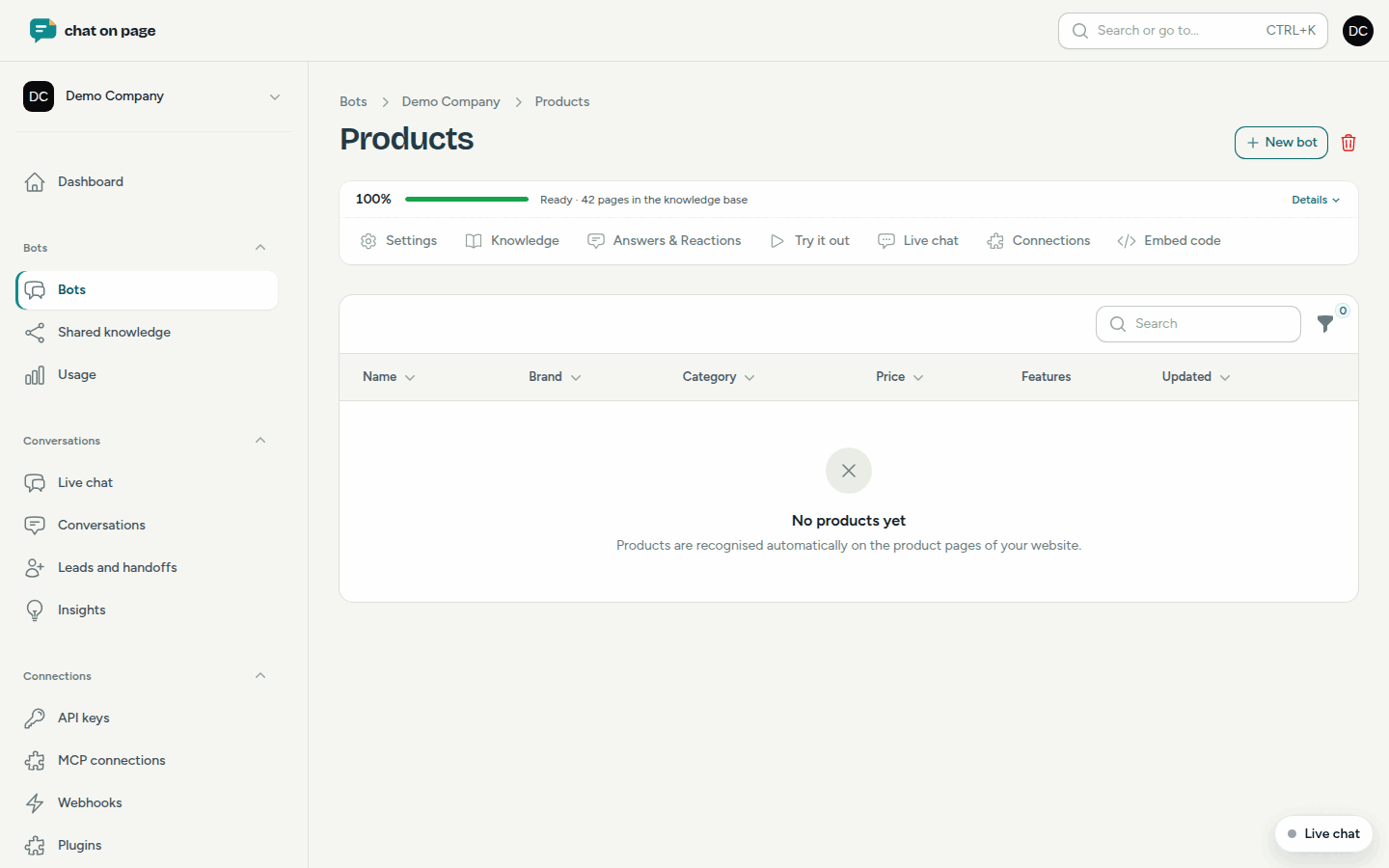
The list is read-only: your website is the source. If you want to edit a product, do so in your webshop. The bot will pick up the changes during the next check.
Keeping prices and stock levels up to date
By default, the bot re-reads your pages according to the Check interval of the source. For a webshop, enable Dynamic content (check more often) or choose a shorter interval.
If you use WooCommerce or PrestaShop, install the plugin for WordPress or the module for PrestaShop. If a product, price or stock level changes, the webshop will notify Chat on Page, which will immediately re-read that product page. The bot can then also look up the status of an order. For Shopify and Lightspeed, see Shopify and Lightspeed.
Good to know
- The Products section only appears in the menu once products have been found.
- If your robots.txt blocks the follow-up pages of your product lists, the bot won’t find all your products. You will then see a message with the Ignore robots.txt button.
- Each product page counts towards your page limit. See Usage.