
Add questions and answers
Give the bot a fixed answer to questions that visitors often ask. That answer carries more weight than the text on your website.
With questions and answers, you define what the bot says in response to frequently asked questions. If a visitor asks (approximately) such a question, the bot will provide your answer. It carries more weight than the text on your website.
Add a question
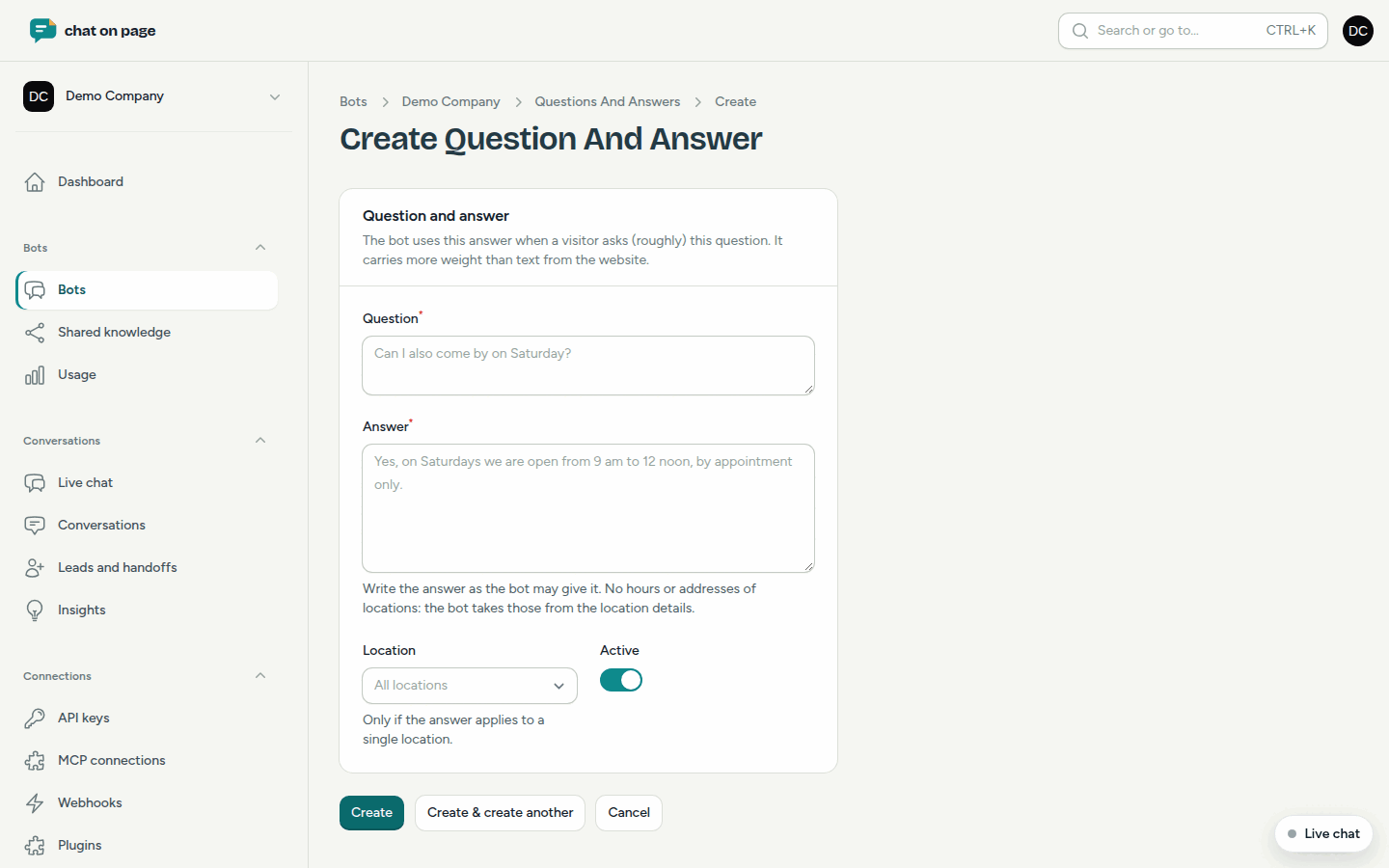
- Open your bot and select Answers & Reactions > Questions and answers.
- Click Add question.
- Enter the Question as a visitor would ask it, for example, "Can I also visit on Saturday?".
- Write the Answer as the bot is allowed to give it.
- Does the answer only apply to one location? Select it under Location. If you leave it blank, it applies to all locations.
- Leave Active on and save.
How it works
The bot does not search for exact words but for meaning. A visitor who asks, "Are you open at the weekend?" may therefore also receive your answer about Saturday. In the list, you can see in the Done column whether a question has already been made searchable. This happens automatically after saving.
If you want to temporarily stop using a question, turn Active off instead of deleting it.
Questions and answers or something else?
- Fixed answer to a fixed question: use questions and answers.
- Does the answer depend on the visitor, or does the bot first need to ask or look something up? Then use an answer rule.
- Is it about something temporary, such as an event or renovation? Use Temporary information.
Good to know
- Do not include opening hours or addresses in your answers. The bot retrieves these from the data of your locations, so they are always correct.
- Questions with Shared in the From column apply to multiple bots. You can edit them under Shared knowledge.
- Test a new question immediately in Try it out.