
Setting up answer rules
Determine how the bot handles a specific type of question: what it asks first, which tool it uses, and which documents it includes.
An answer rule determines how the bot handles a type of question. You specify what it should ask first, which tool it uses, and which documents it always includes. The bot formulates the answer itself. Is the answer fixed and the same for everyone? Then use Questions & Answers.
Adding a rule
- Open your bot and select Answers & Reactions > Answer rules.
- Click Add rule.
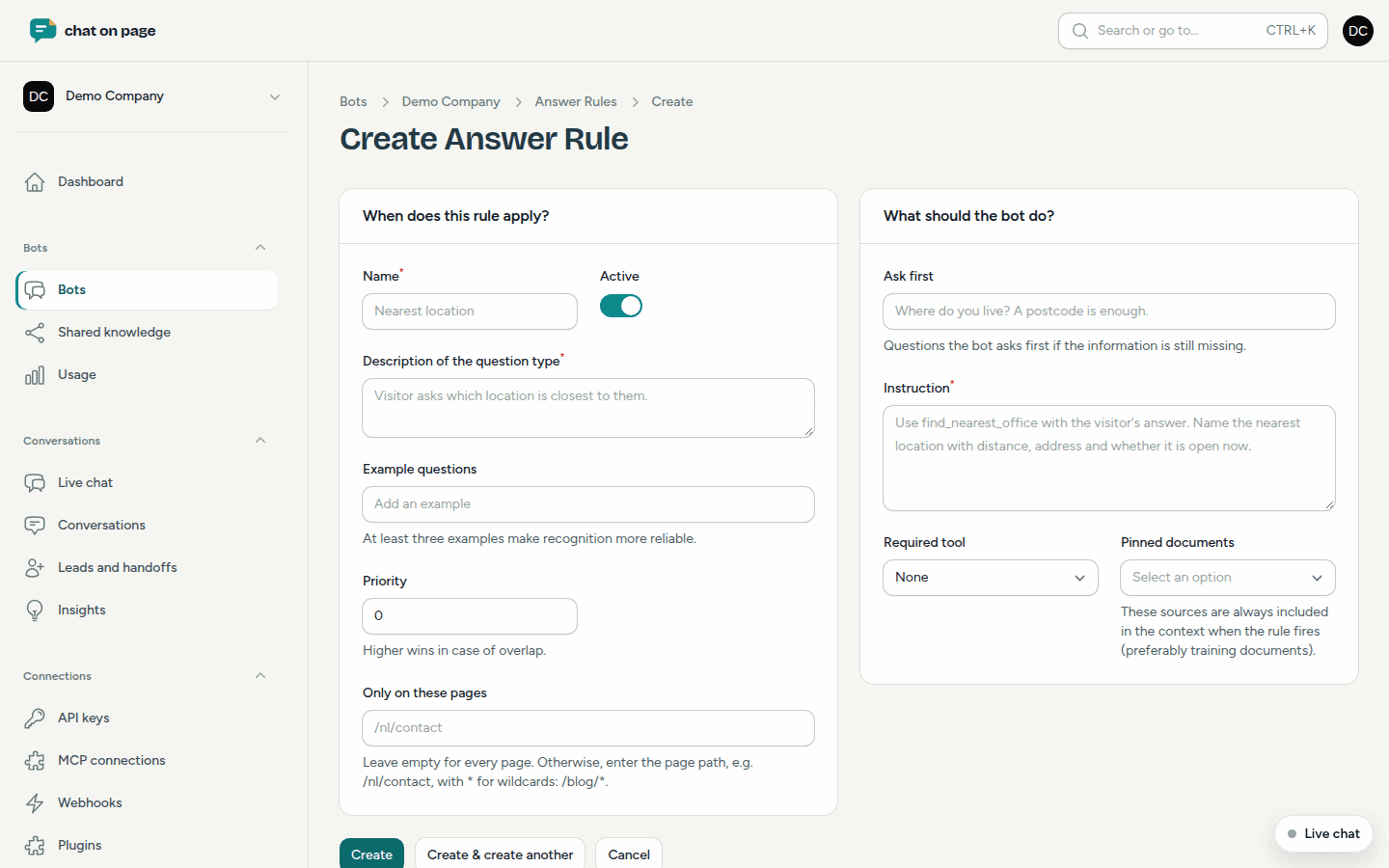
- Under When does this rule apply? enter a Name and a Description of the question type, for example, "Visitor asks which location is closest to them."
- Under Example questions, add a few questions as visitors might phrase them. At least three examples make recognition more reliable.
- Optional: assign a Priority (higher wins in case of overlap) and fill in Only on these pages, for example,
\/nl\/contactor\/blog\/*. Leave blank for all pages. - Under What should the bot do? fill in Ask first with the questions the bot should ask if that information is missing, such as "Where do you live? A postcode is sufficient."
- Write the Instruction: what the bot does with the visitor’s answer.
- Optionally, select a Required tool (for example, Find nearest location or Bring in a staff member) and Pinned documents that are always included when the rule fires.
- Keep Active on and save.
How it works
The bot compares each question with the description and examples of your rules. In case of doubt, a small language model decides whether the question truly falls under the rule. If it’s about something else, even if it seems related, the rule does not apply. Answer rules and choice flows are evaluated together: at most one applies per question.
In the list, you see for each rule how often it has been Fired and in the Done column whether it can already be used. This happens automatically after saving.
Quickly create a rule from a conversation
Did the bot give an answer that needs improvement? Open the conversation under Conversations and click Create answer rule. The visitor’s question is immediately added as an example. You can then refine the rule under Answer rules.
Good to know
- Rules with Shared in the From column apply to multiple bots. You can edit these under Shared Knowledge.
- If a rule isn’t firing, add more and varied example questions and test again in Try it out.
- Temporarily disable a rule using Active instead of deleting it.