
Quote requests via the chat
Let the bot collect all the details for a quote in the conversation and receive the complete request with your team.
If a visitor requests a quote or wants to place an order, the bot will ask follow-up questions in the conversation to gather what you need, such as quantity, application and delivery address. You will receive the request with all the details, without any back-and-forth emails.
Setting up a quote request
- Open your bot and select Answers & Reactions > Quote requests.
- Click Add quote request.
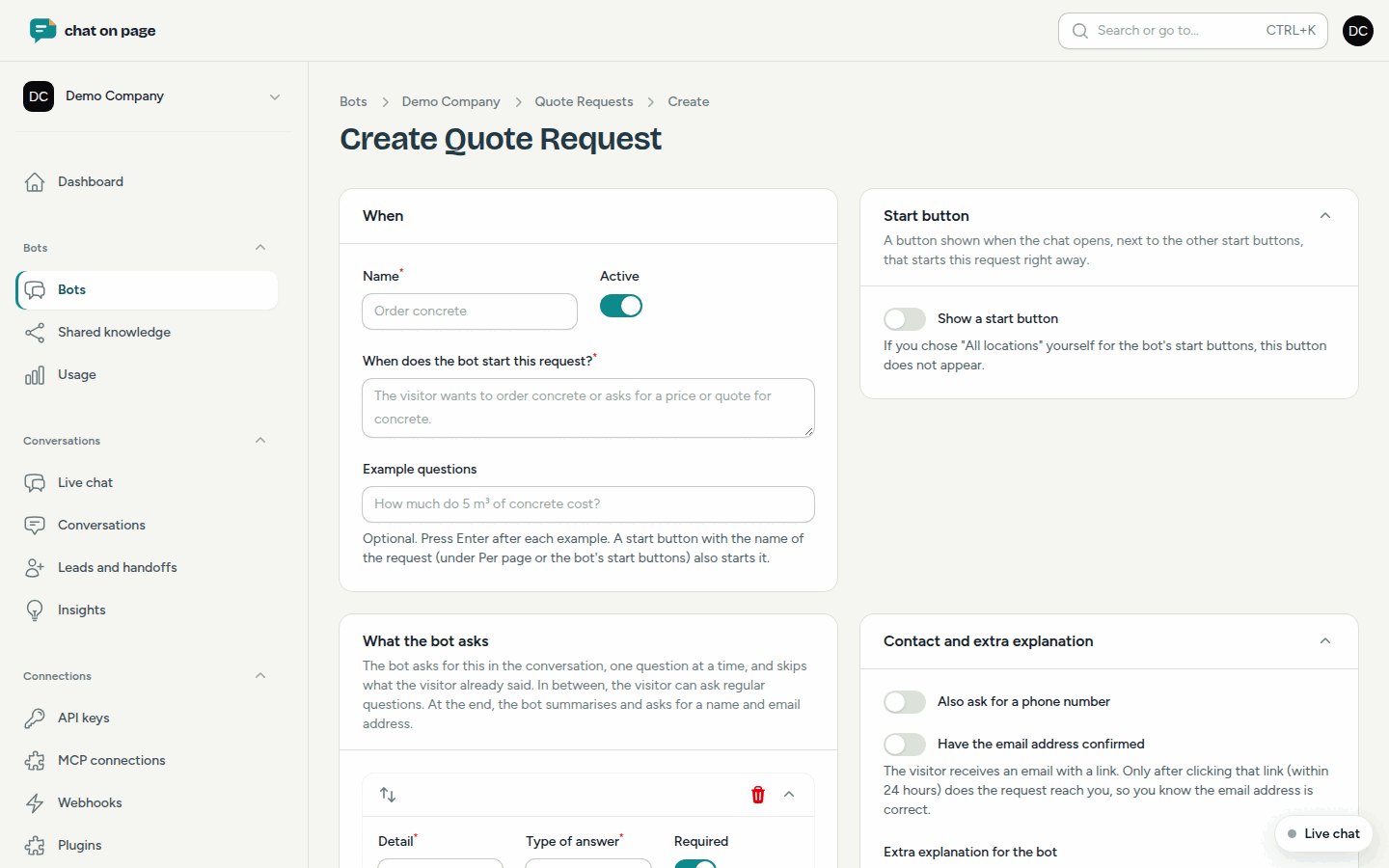
- Under When, enter a Name (e.g., "Order concrete") and fill in When does the bot start this request?. Optionally, add Example questions.
- Do you want a button when the chat opens? Under Start button, enable Show a start button and enter the Button text.
- Under What the bot asks, add your questions using Add question. For each question, choose the Detail, the Type of answer (Text, Number, Choice from options or Date) and whether it is Required. For a number, you can specify a Unit; for a choice, the Options.
- Under Contact and extra explanation, choose whether the bot should Also ask for a phone number and whether it should Have the email address confirmed. Under Extra explanation for the bot, you can specify details such as where you deliver.
- Keep Active enabled and save.
How the conversation proceeds
- The bot asks one question at a time and skips what the visitor has already mentioned.
- For a multiple-choice question, the visitor sees the options as buttons.
- In between, the visitor can ask regular questions. The bot will then continue with the request.
- At the end, the bot summarises everything, asks for the name and email address, and only sends the request after the visitor’s approval.
Where does the request end up?
A submitted request becomes a lead. Your team receives an email with the details and a suggested reply (see Reply email). Connected systems such as your CRM, Slack or Teams will also receive it (see Integrations). Under Leads and handoffs, you can find all requests using the filter Quote requests only.
Good to know
- The bot never provides prices. These will be in your quote.
- With Have the email address confirmed, the visitor receives an email with a link. Only after clicking that link (within 24 hours) will the request reach you. This ensures the address is correct.
- If the visitor does not respond for 2 hours, an ongoing request will expire.
- Test your request in Try it out before going live.
Another question? Our assistant will help you right away.