
Reservations via the chat
Let visitors book a table or appointment in the chat. The bot knows the available slots and accounts for your capacity.
With reservations, a visitor can book a table, a GP appointment or a slot at the hairdresser’s in the chat. The bot knows the available slots and accounts for the capacity per session and per day.
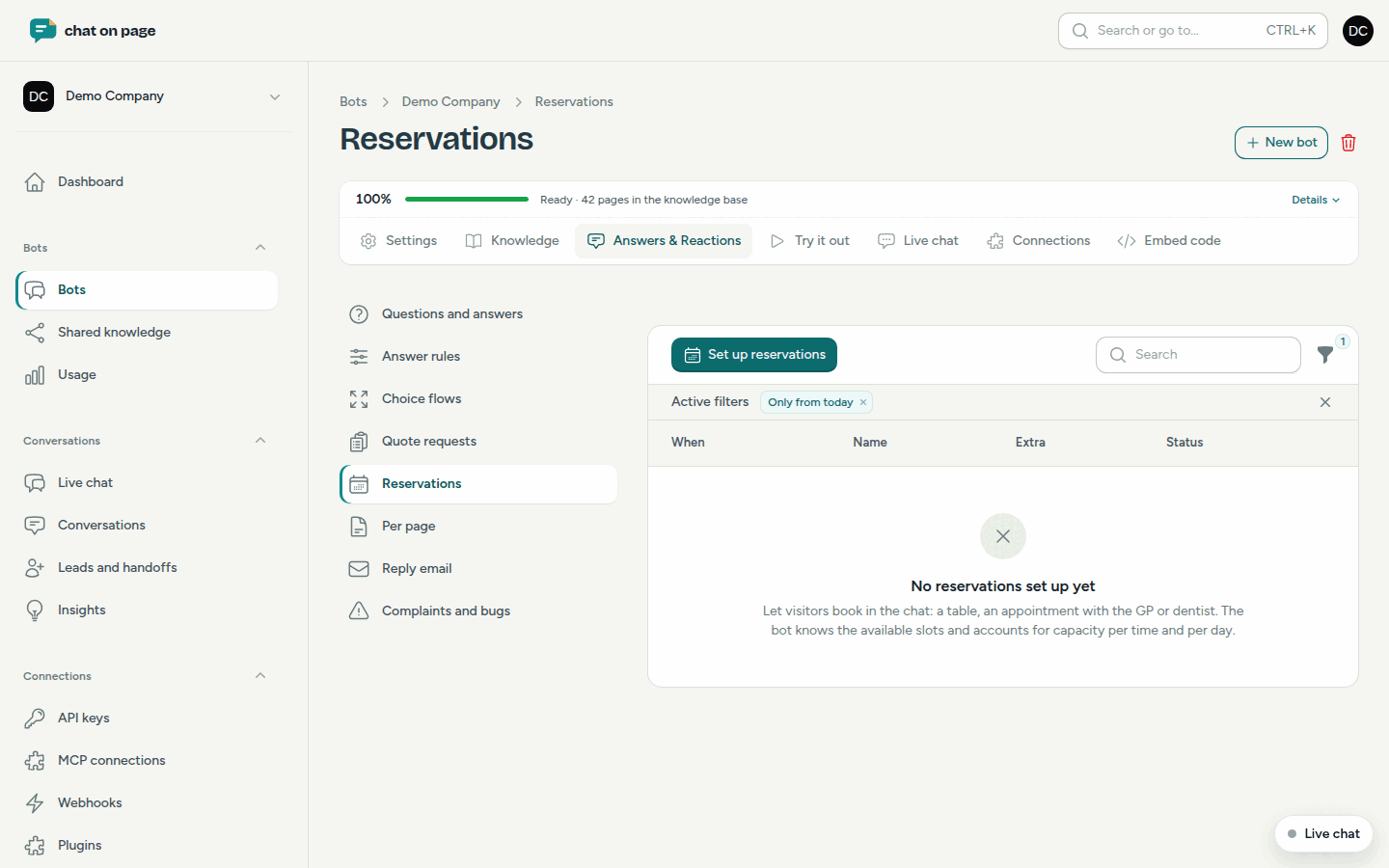
Set up reservations
- Open your bot and choose Answers & Reactions > Reservations.
- Click Set up reservations and select your type of business under For which business?, for example Restaurant, GP practice or Something else. You’ll get the usual sessions, capacity and questions for that business.
- Adjust everything:
- General: the Name, Active and whether there is a start button.
- Sessions: for each session (e.g. lunch or dinner) the First time, Last time, Every how many minutes, the Days and the Capacity. This applies for the whole session or per time slot.
- Rules: Maximum people per reservation, At least in advance, At most ahead, whether the bot asks for a phone number and whether the email address must be confirmed. Under Notifications to, choose who receives an email. Leave blank to use the bot’s support address.
- Optional: Types, Exceptions (closed or different capacity), Additional questions and For the bot.
- Save.
Later, you can adjust this using the Settings button at the top of the Reservations page.
How a reservation works
The bot searches for available times and displays them as buttons. It asks for the necessary details, one question at a time, and only books once the visitor confirms. If Have the email address confirmed is enabled, the slot is held for 120 minutes and the reservation is only final after clicking the link in the email. After that, the visitor receives a confirmation email with a link to change or cancel their reservation. If they request this later in the chat, the bot emails those links to the reservation’s email address.
Tracking reservations
At the top, you’ll see a calendar with occupancy. Click on a day to view that day’s reservations. For each reservation, you can:
- Confirm, if it’s still waiting for the visitor.
- Cancel. The slot becomes available again. For a confirmed reservation, you can choose whether to notify the visitor by email, including a reason.
Use Add reservation to enter a reservation yourself, for example a phone booking. This way, it counts towards the available slots in the chat.
Good to know
- Turn Active off to temporarily stop accepting reservations. Existing reservations remain.
- Reservations are also sent to linked systems and webhooks (see Integrations and Webhooks).
- Would you prefer visitors to choose an appointment in your own calendar? See Schedule an appointment.