Creating choice flows with buttons
Guide visitors to the right department or location using buttons, and only have the bot respond at the end with their choices as context.
A choice flow is a small decision tree. For a specific type of question, the bot asks a choice question with buttons, for example, "Which department would you like to register for?". This way, the visitor reaches the correct answer step by step. Useful when the answer depends on the department, service, or location.
Suggested flows
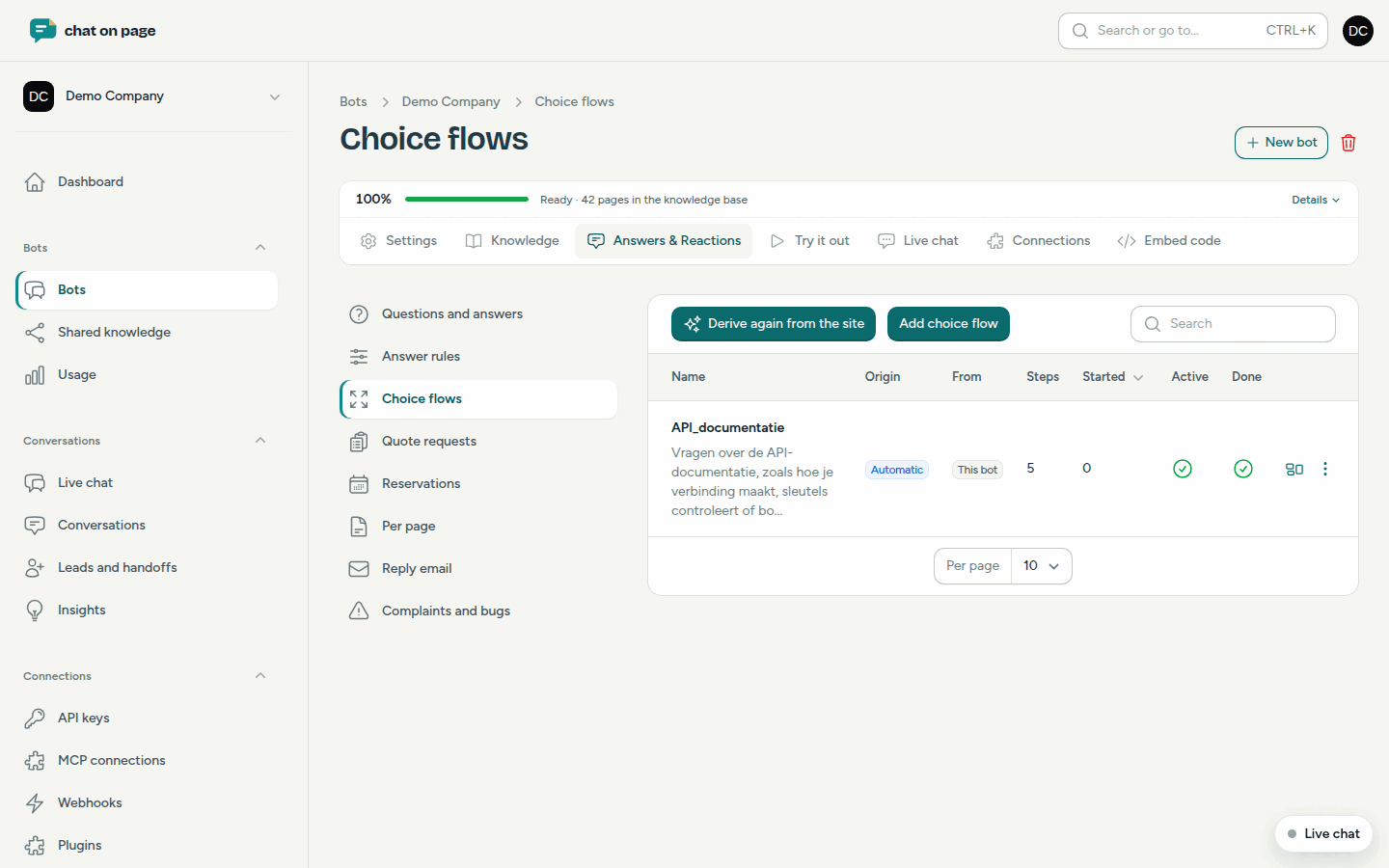
After reading your website, Chat on Page suggests choice flows itself. You can find them under Answers & Reactions > Choice flows, with Automatic in the Origin column. If you edit one, it will show Automatic, edited. Use Derive again from the site to get a new suggestion. Flows you created or edited yourself will remain.
Creating or editing a flow
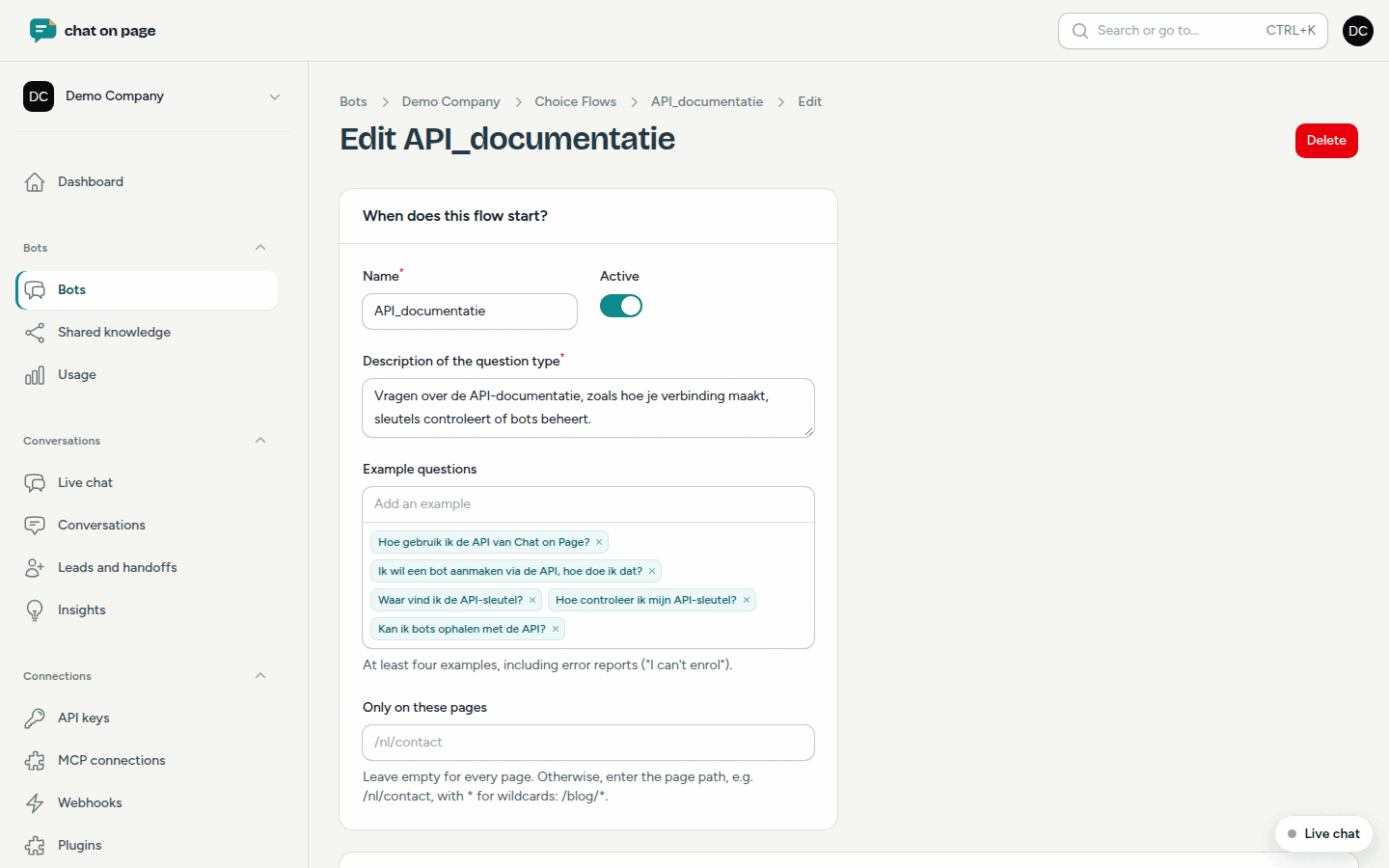
- Click Add choice flow or Edit for an existing flow.
- Under When does this flow start?, fill in a Name, a Description of the question type, and at least four Example questions. Also add error messages, such as "I cannot register".
- Optionally limit the flow with Only on these pages.
- Under Steps, add your steps. Each step has a short Key and a Type:
- Choice question with buttons: a Question with Choices. Each button refers to another step via Next step (key).
- Choose location: displays your locations, optionally of one Location type, with a button to find the nearest one.
- Answer (instruction for the bot): ends the flow. The bot responds with your instruction and the choices made.
- Bring in a staff member: ends the flow and forwards the question to your team.
- Under Start step (key), choose where the flow begins. Leave blank for the first step.
- Check the Diagram at the top and save.
Good to know
- You create flows in the bot’s language. A visitor writing in another language will see the question and buttons translated.
- Answer rules and choice flows are weighed together: only one starts per question. See Answer rules.
- For Choose location, you need locations.
- In the list, you can see how often a flow has been Started. Use the Diagram icon to view the flow without opening it.
- In Insights, you can see what visitors chose and where they dropped off.
- Test each flow in Try it out.