
Let visitors schedule an appointment themselves
Provide the link to your online calendar. If a visitor asks for an appointment, call or demo, the bot will share that link, also as a button below the reply.
Do you use an online calendar, such as Calendly, Google Calendar (appointment scheduling), Microsoft Bookings or Cal.com? If so, the bot can direct visitors there immediately. If a visitor asks for an appointment, call or demo, the bot will provide the link to your calendar. The visitor can then choose a time slot themselves.
Set it up
- Open your bot and go to Settings → Behaviour.
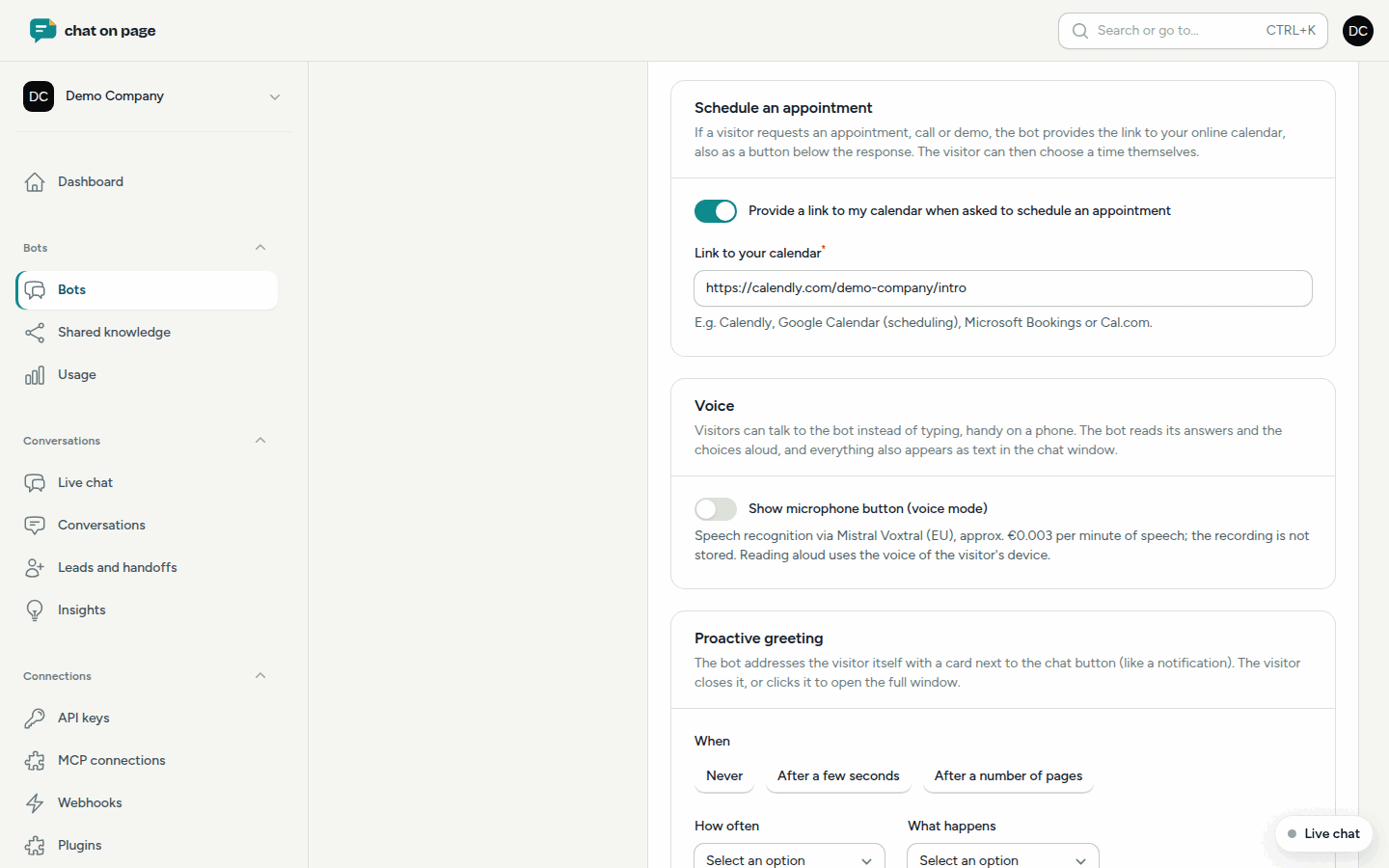
- Scroll to Schedule an appointment.
- Turn on Provide a link to my calendar when asked to schedule an appointment.
- Paste the link to your booking page under Link to your calendar, for example
https://calendly.com/yourbusiness/introductory-meeting. - Click Save changes.
How it works
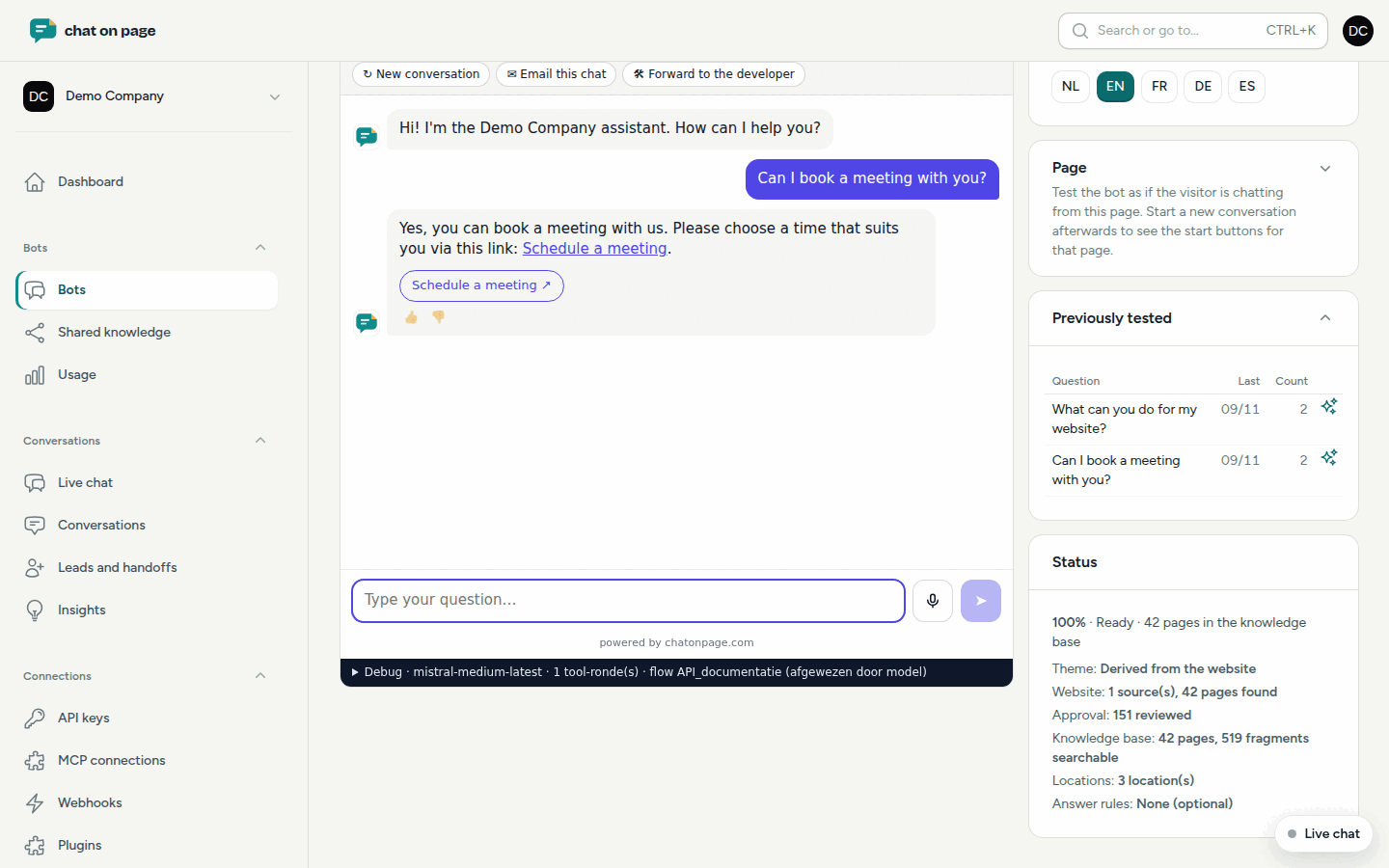
- The visitor asks, for example, "Can I get a demo?" or "How do I make an appointment?".
- The bot replies that the visitor can choose a time slot via the link and includes the link in its response.
- A button labelled Schedule an appointment appears below the reply. The label follows the language of the conversation, for example "Schedule a meeting" or "Prendre rendez-vous".
- The bot does not ask for a name or email address and does not involve a team member. The visitor enters those details in your calendar.
Good to know
- This feature is disabled by default. As long as it is disabled, the bot will respond to appointment requests by offering to have a team member get in touch.
- If you enable the toggle, the link is mandatory.
- Do you take reservations via the bot, for example for a table or a treatment? The bot will continue to use reservations for that. See Reservations.
- Test it first at Try it out.
Another question? Our assistant will help you right away.