
Configure the chat button, window and proactive engagement
Set up the chat button, the size of the chat window, voice mode and proactive engagement with visitors, and choose whether sources are visible.
Under Behaviour, you determine how the chat behaves on your website: what the button looks like, how large the window is, and whether the bot engages visitors proactively.
Open your bot and go to Settings → Behaviour. Click Save changes after making your adjustments.
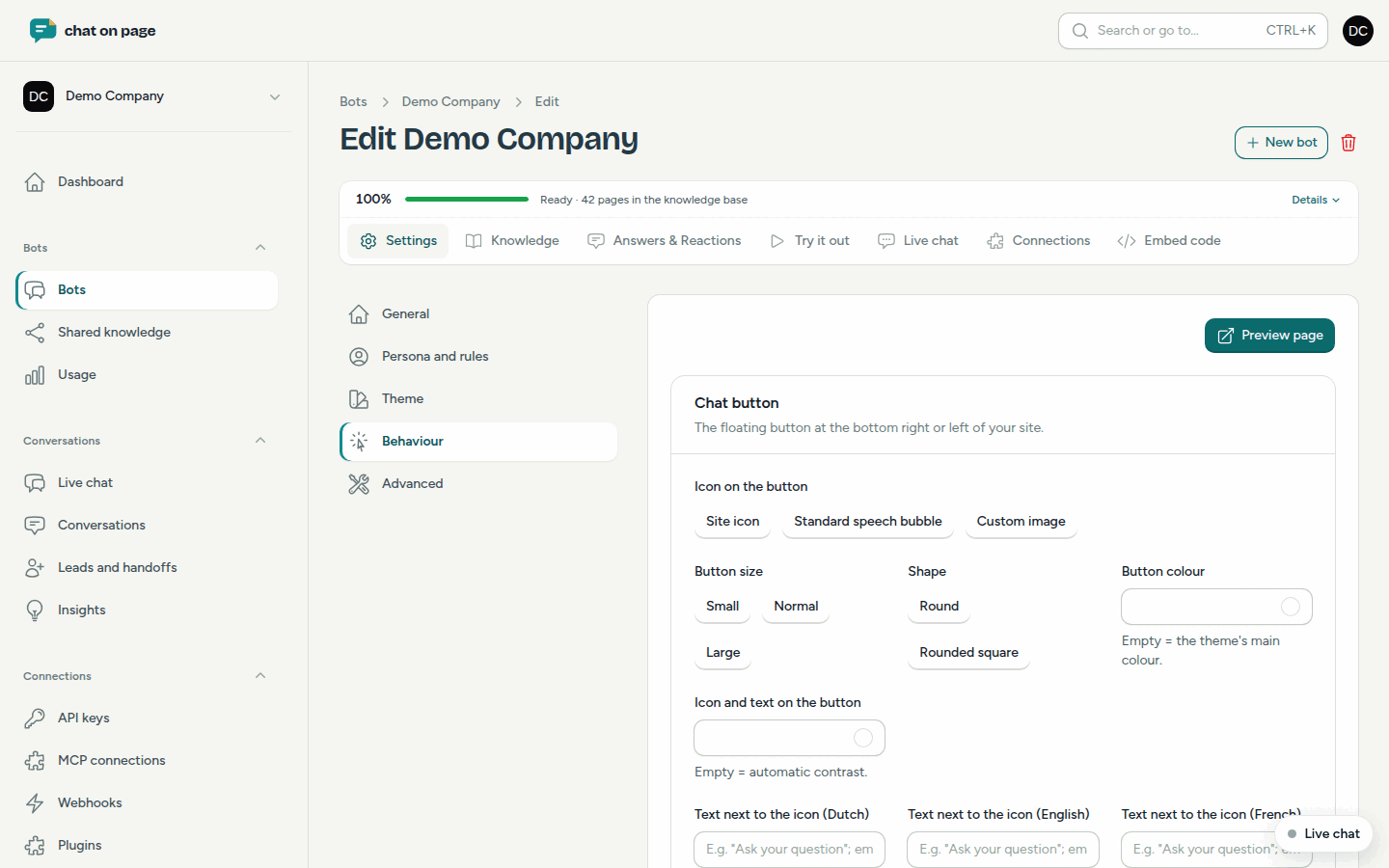
Chat button
The floating button in the bottom-right or bottom-left corner of your site.
- Icon on the button: Site icon, Standard speech bubble or Custom image (square, e.g. 128×128 px, PNG or SVG).
- Button size: Small, Normal or Large. Shape: Round or Rounded square.
- Button colour and Icon and text on the button: leave blank to use the theme’s main colour and automatic contrast.
- Text next to the icon: e.g. "Ask your question". Leave blank to show only the icon.
- Distance from the side (px) and Distance from the bottom (px): useful if there is already another button in the corner.
Chat window
- Size: Compact (340×520), Standard (380×600), Large (440×700) or Custom size (width 300 to 640 px, height 400 to 900 px). On phones, the window always opens full-screen.
- Powered by chatonpage.com: displays this notice at the bottom of the window. Turn it off to hide it.
- Show sources under answers: links to the pages on which an answer is based. This is off by default. In the portal, you can always see the sources.
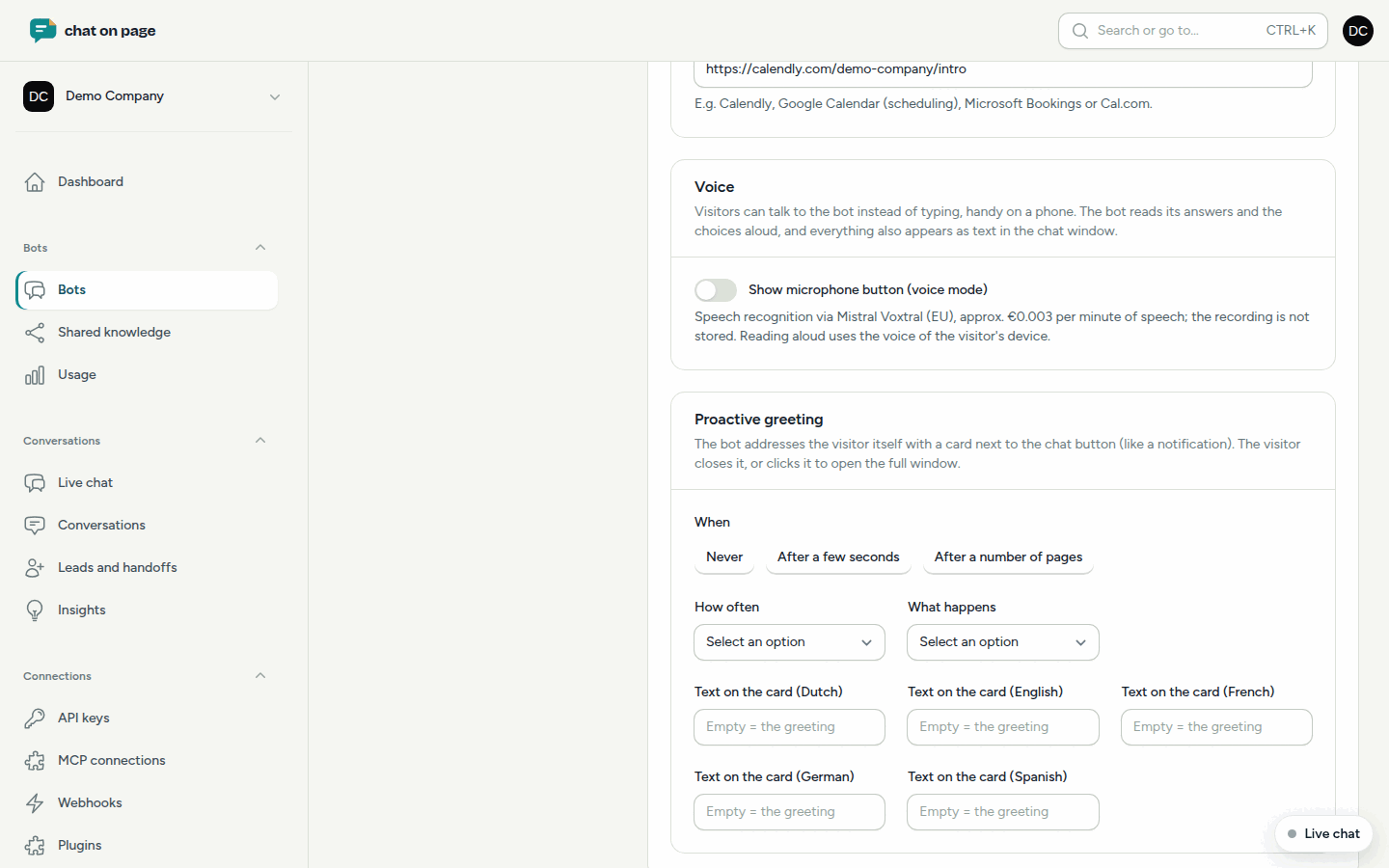
Voice
With Show microphone button (voice mode), visitors can talk to the bot instead of typing, which is handy on a phone. The bot reads out its answers and the choices, and everything also appears as text. The recording is not saved. This option is on by default.
Proactive engagement
The bot proactively engages the visitor with a card next to the chat button. The visitor can close it or click on it to open the window.
- Under When, choose: Never, After a few seconds or After a number of pages.
- Enter the number of Seconds after loading or From which page number (counted within one visit).
- Choose How often: Once per visit, Once per day or On every page.
- Choose What happens: Show card with the greeting or Open the chat window fully.
- Optionally, enter your own Text on the card. Leave blank to use the greeting.
Good to know
- Proactive engagement is off by default. On a single page, you can turn it off with
data-nudge="off"in the embed code. - In the same tab, you can also configure Schedule an appointment.
- You choose the colours and position of the chat under Theme.