
Place the chat on your website using the embed code
Paste a single line of code just before </body> on your site, and the chat button will appear. Use additional attributes to adjust the language, position, and behaviour per page.
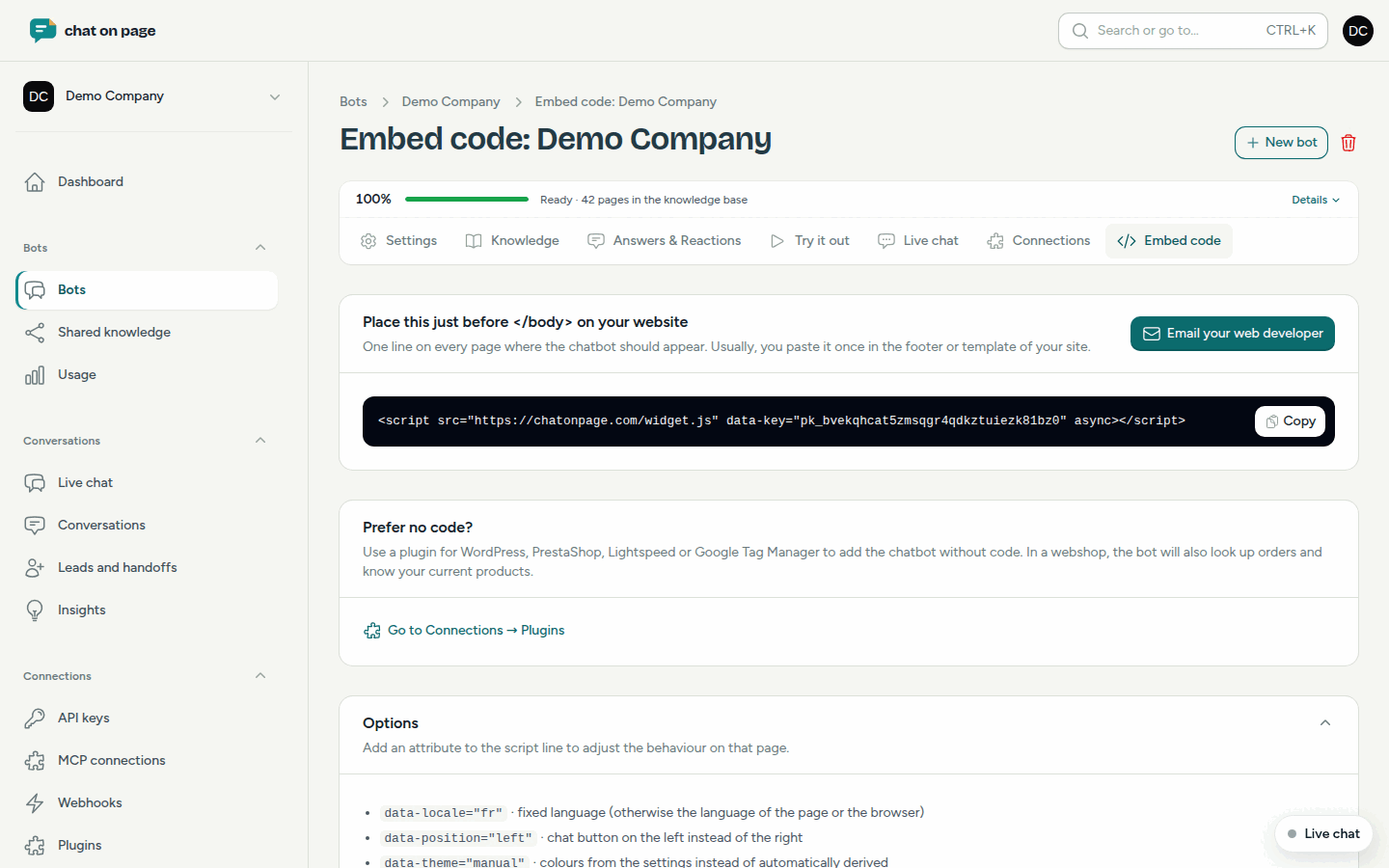
The embed code is a single line that places the chat button on your website. It works on any website, even without a plugin.
Placing the code
- Open your bot and select Embed code.
- Click Copy next to the code.
- Paste the line just before the closing
</body>tag on your site. Usually, you do this once in the footer or template so the chat appears on every page. - Save and open your site. The chat button will appear in the bottom-right corner.
The code looks like this (with your bot’s key):
<script src="https://chatonpage.com/widget.js" data-key="pk_..." async></script>
Let your web developer do it
Does someone else manage your site? Click Email your web developer. You’ll get a ready-to-send email with the code and instructions. Review it, edit as needed, and click Send. You’ll receive a copy, and replies will go to you. You can send up to two emails per day this way.
Options per page
Add an attribute to the script line to adjust the behaviour on that page. You can also find these under Embed code → Options.
data-locale="fr": fixed language. Otherwise, the chat follows the page or browser language.data-position="left": chat button on the left instead of the right.data-theme="manual": colours from the settings instead of automatically derived.data-open="true": open the window immediately.data-icon="default": no favicon on the button.data-nudge="off": never proactively engage on this page.
If you want to open the chat from your own button or link, use ChatOnPage.open() in JavaScript.
Allowed domains
The chat only works on the domains assigned to your bot. Your website’s domain is automatically included, and subdomains are permitted by default. If you place the chat on another domain, such as a test environment or a second site, add that domain under Settings → General → Allowed domains (without www.).
Good to know
- The chat only appears if the bot’s Status is set to Active.
- Prefer not to use code? Use a plugin for WordPress, PrestaShop, or Google Tag Manager.
- First, see how the chat looks on the example page.
- If you want the chat to behave differently on certain pages, see Per page.