
Create your account and start your first bot
Create an account with your web address; Chat on Page reads your site, builds your first bot and emails you as soon as it’s ready.
You start with one thing: the web address of your site. Chat on Page reads your site, immediately creates a chatbot from it and adopts your colours. You don’t need to upload anything yourself.
How to create your account
- On chatonpage.com, click Try for free and enter your website under Web address. Click Continue.
- Under Your login, enter your name, email address and a password (at least 8 characters).
- Under Review and confirm, you’ll see what we found on your site: company name, VAT number, contact address and your site’s icon. Edit anything that’s incorrect. The Support address is where questions for a staff member will be sent.
- Click Create account and log in. You’ll go straight to the portal.
What happens next
Your first bot is already waiting in the portal, with your website as the first source. In the background:
- Chat on Page reads the pages of your site, including linked PDFs;
- every page becomes searchable in the bot’s knowledge base;
- branches, opening hours and closing days are detected;
- your site’s colours and font are adopted.
This usually takes 10 to 30 minutes, depending on the size of your site. Under Try it out, you can follow the progress. As soon as the bot is ready, you’ll receive an email "Your assistant is ready" with a link to test it immediately.
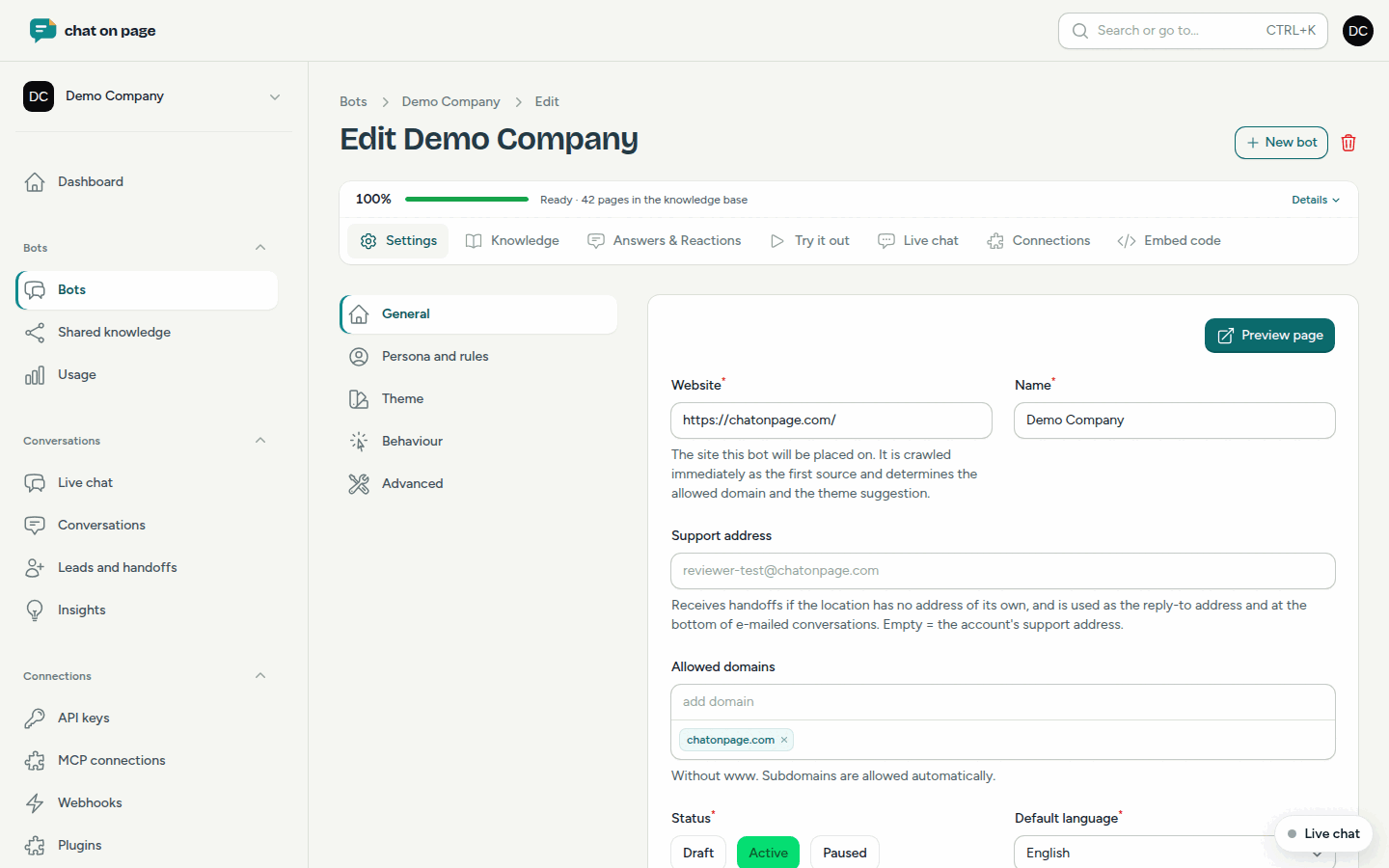
Your trial period
You can try Chat on Page free for 14 days, with no payment details required. Before it ends, you’ll receive an email. If you don’t continue, the bot on your website will be paused; your settings, knowledge base and conversations will be saved. How to choose a subscription is explained in Subscription and invoices.
Where to go next
- Test the bot under Try it out: see Testing the bot.
- Under Knowledge → Sources, check which pages have been read: see Sources.
- Adjust tone and appearance under Settings: see General settings and Theme.
- Add the chat to your site using the embed code or a plugin, such as WordPress.
Good to know
- The bot’s first language is the one you used to register. If your site has pages in other languages, those languages will be enabled automatically after reading.
- Conversations under Try it out and on the example page count as tests.
- If no pages are found, check whether the web address is correct or add a source yourself.