
The general settings of your bot
Website, name, support address, allowed domains, status, languages and automatically approving changes are set under **Settings**, **General**.
Under General, you configure the basics of your bot: which website it covers, where it may appear, in which languages it responds, and whether it is active.
Setting up
- Open your bot and go to Settings → General.
- Adjust the fields (see below).
- Click Save changes.
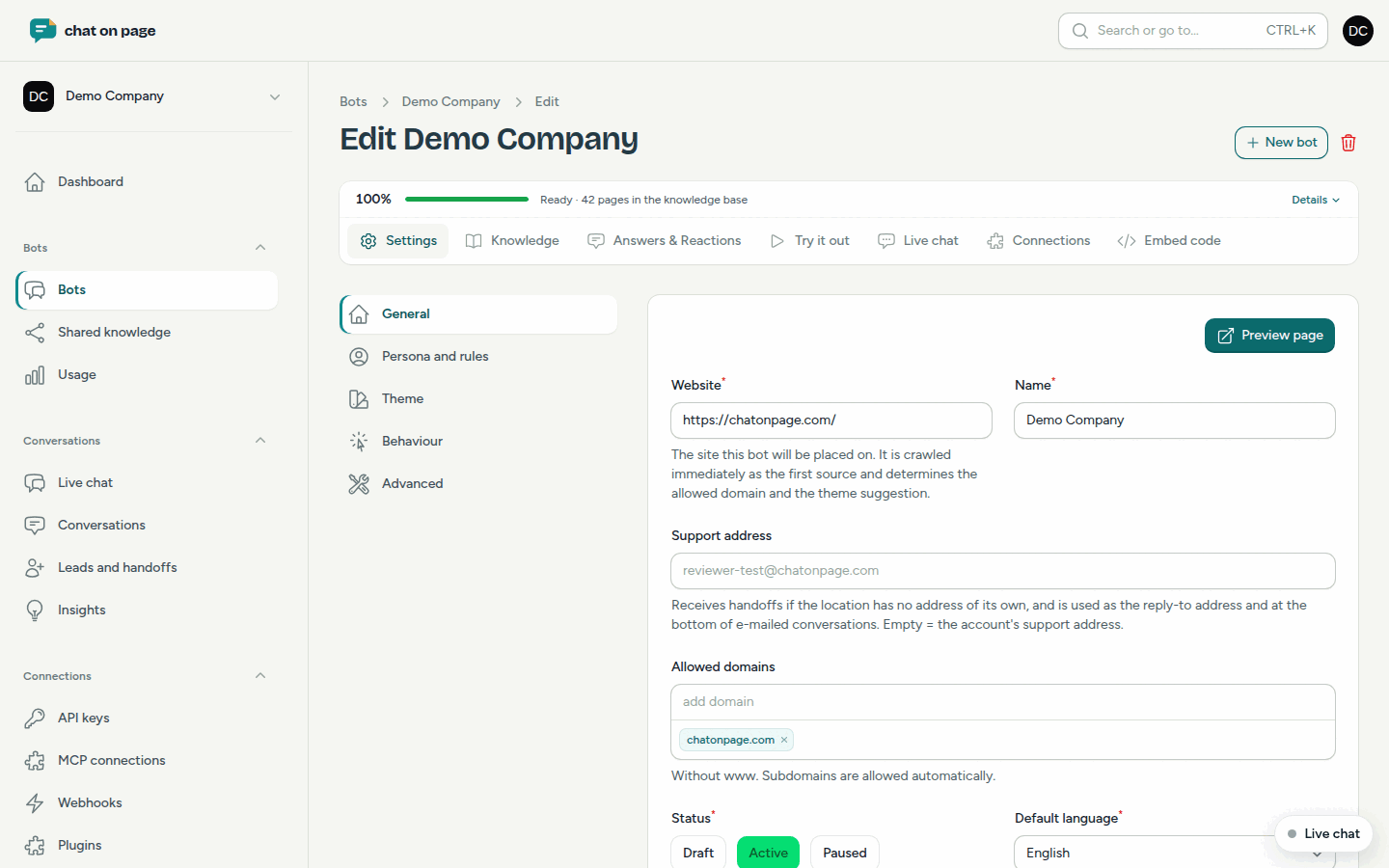
The fields
- Website: the site where the bot will be used. It is immediately read as the first source and determines the allowed domain and the theme suggestion.
- Name: the name of the bot in the portal.
- Support address: receives the questions the bot forwards to a staff member if the location does not have its own address. It is also used as the reply address and appears at the bottom of emailed conversations. Leave blank = the support address of your account.
- Allowed domains: the domains where the chat may appear. Enter them without www. Subdomains are automatically allowed.
- Status: Draft, Active or Paused. Only when the bot is set to Active will the chat appear on your website.
- Default language and Languages: the bot responds in the visitor’s language, from the languages you select (Dutch, English, French, German, Spanish). If your website has pages in another language, that language is automatically enabled after reading. A language you disable yourself remains off.
- Approve changes automatically: enabled by default. New and modified pages are then immediately added to the knowledge base, as are automatically found locations and opening hours. If you disable it, each change waits under Changes for your approval. You can override this per source. If you enable it again later, pending changes are applied immediately.
If you are a partner, you will also see Bot for a customer. Enable this if you are building the bot for a customer: such a bot does not count towards your own plan. See Partner Programme.
Good to know
- Want to remove the bot from your site temporarily without removing the code? Set the Status to Paused: it will not work anywhere, not even under Try it out. If you still want to test it but not show it on your site, choose Draft.
- If you add a language, fill in the texts under Theme, or let them be translated automatically when saving.
- How to review changes is explained in Changes. Which pages the bot reads is covered in Sources.
- Under Settings → Advanced, you can see which language models the bot uses. All bots use Mistral’s models (EU); selecting a different model is not yet possible.
Another question? Our assistant will help you right away.