
Colours, logo and texts of the chat window
Let the chat window automatically follow your site’s colours or choose them yourself, and adjust the logo, greeting and start buttons.
Under Theme, you determine how the chat window looks and what the visitor reads first. By default, the chat adopts your website’s colours so it fits right in.
Choosing colours
- Open your bot and go to Settings → Theme.
- Under Colours, choose:
- Automatic (follows the website): when creating the bot, a proposal is derived from your site, and on your site the chat follows the page’s colours.
- Manual: only the colours you select below.
- Adjust if needed: Main colour, Accent colour (left), Background, Text, Text on main colour and Corner radius (px).
- Click Save changes.
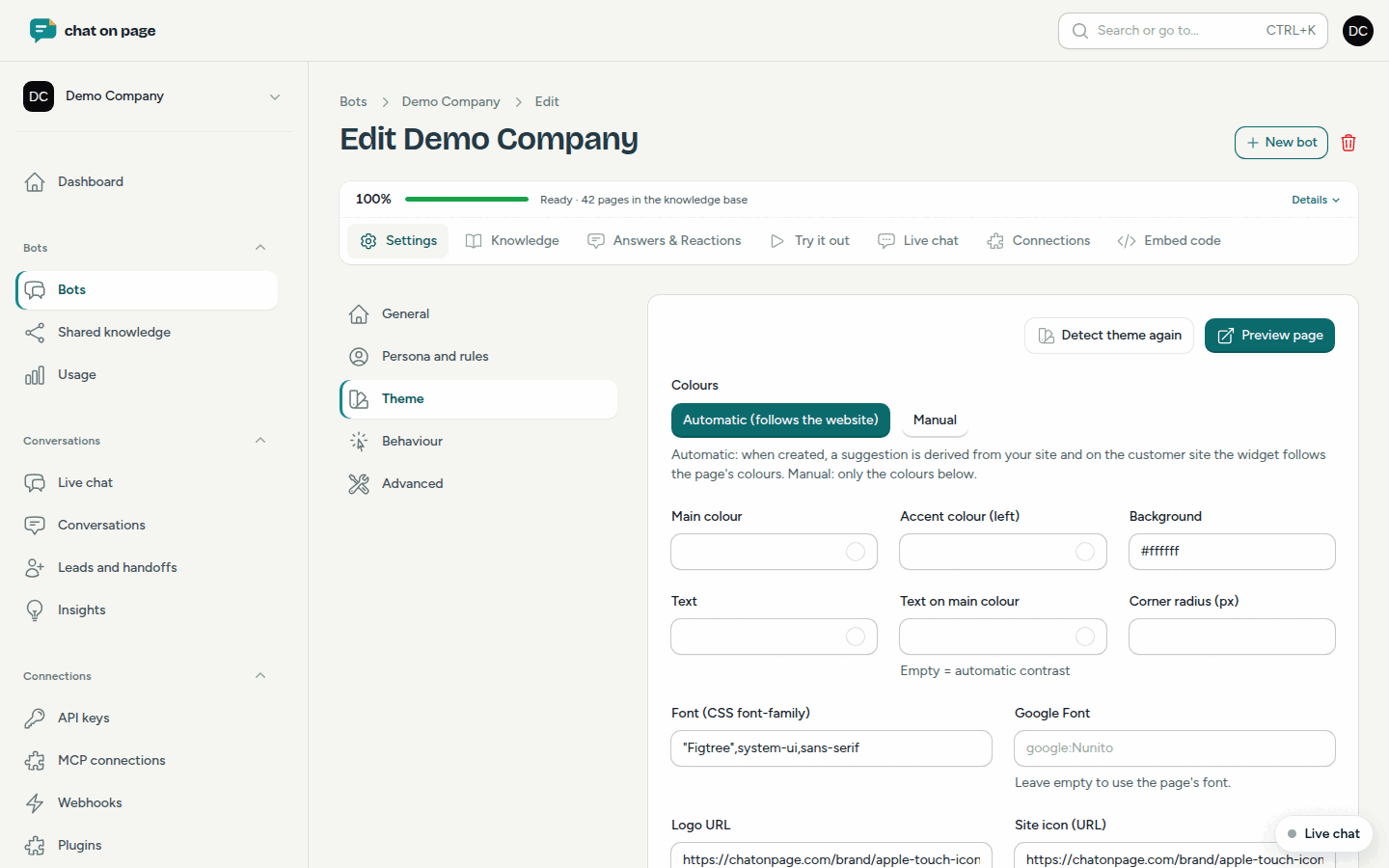
Has your site changed? Click Detect theme again. The colours, logo and icon are fetched from your website again and saved immediately. Any unsaved changes will be lost.
Font, logo and position
- Font (CSS font-family) and Google Font: leave blank to use the page’s font.
- Logo URL: the logo in the chat window’s header.
- Site icon (URL): usually the favicon. It is found automatically and appears next to each reply.
- Position: the chat button on the Right or Left.
Texts and start buttons
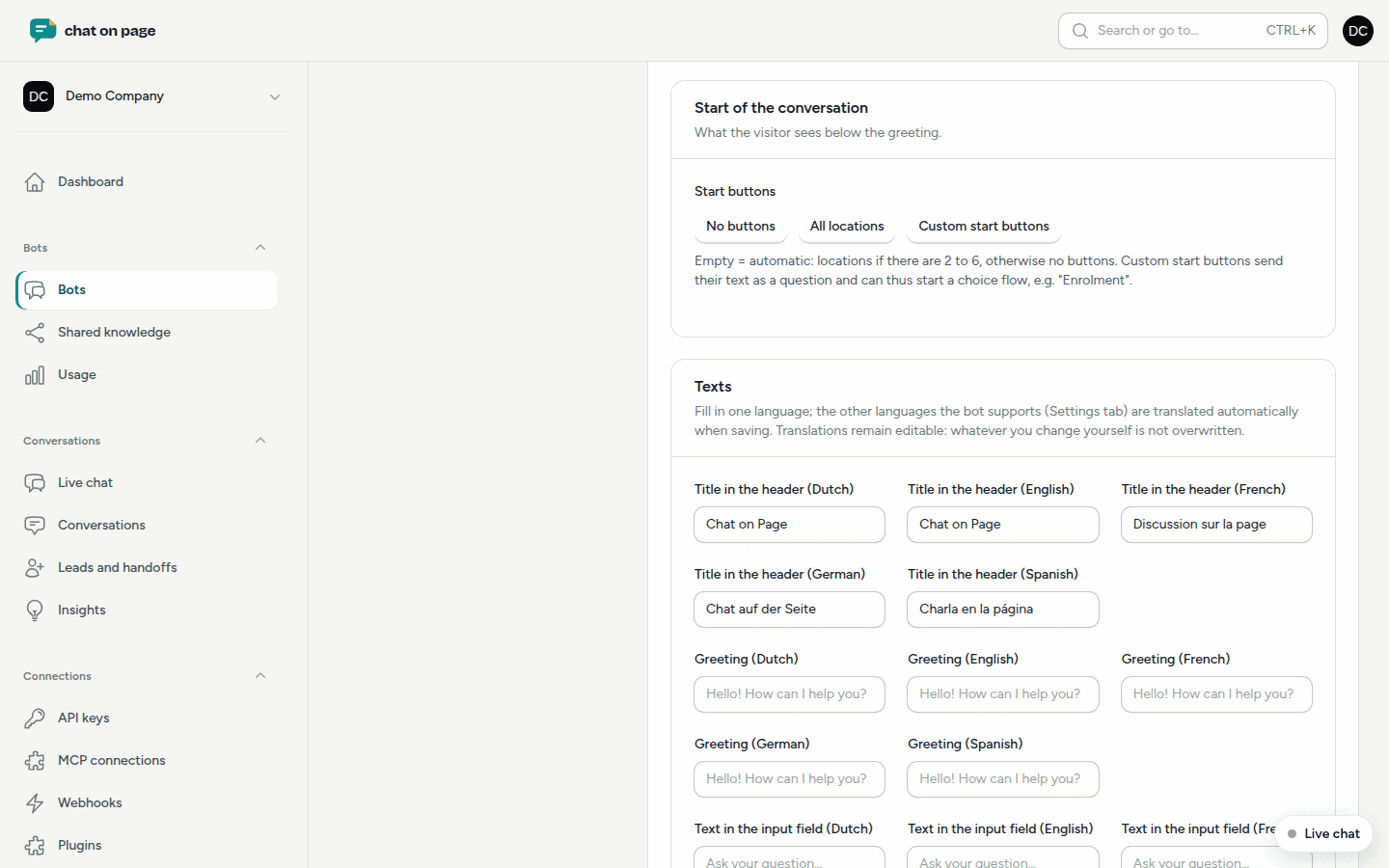
Under Texts, fill in the Title in the header, the Greeting and the Text in the input field. Enter one language: the bot’s other languages are automatically translated when you save. You can still adjust each translation; what you change yourself will not be overwritten.
Under Start of the conversation, choose the Start buttons that appear below the greeting:
- No buttons;
- All locations;
- Custom start buttons: up to 6 buttons per language. A click sends the text as a question and can start a choice flow, for example "Sign up".
If you select nothing, the bot shows the locations if there are 2 to 6, otherwise no buttons.
Good to know
- View the result with Preview page at the top right. After a change, click Reload after a change there.
- The chat button itself (icon, size, colour) is set under Behaviour.
- To show the chat on one page with your own colours, use
data-theme="manual"in the embed code. - More about buttons that start a guided conversation: Choice flows. Manage locations under Locations.