
Follow up on leads and handoffs
See who wants to be contacted or requested a quote, track the status of the email to your team, and export your leads.
A lead is a visitor who wants to speak to your team or has made a request. The bot forwards the question: this is called a handoff. Under Leads and handoffs, you can find them all in one place, along with the follow-up status.
When is a lead created?
- The visitor asks for a team member, or clicks Let a team member contact me if the bot did not find a complete answer. The bot then asks for their name and email address.
- The visitor submits a quote request. If they had to confirm their email address, the lead is only created after they click the link.
- If the visitor has not yet provided all their details and stops responding, the lead is still created after a waiting period, with the available information.
For each lead, the bot retrieves the name, email address, phone number, the question, and a summary of the conversation. Your team then receives the reply email with a suggested response. If a colleague is online in Live chat, the visitor can start chatting immediately. The lead is still created, but the email is only sent if live chat is not possible.
The list
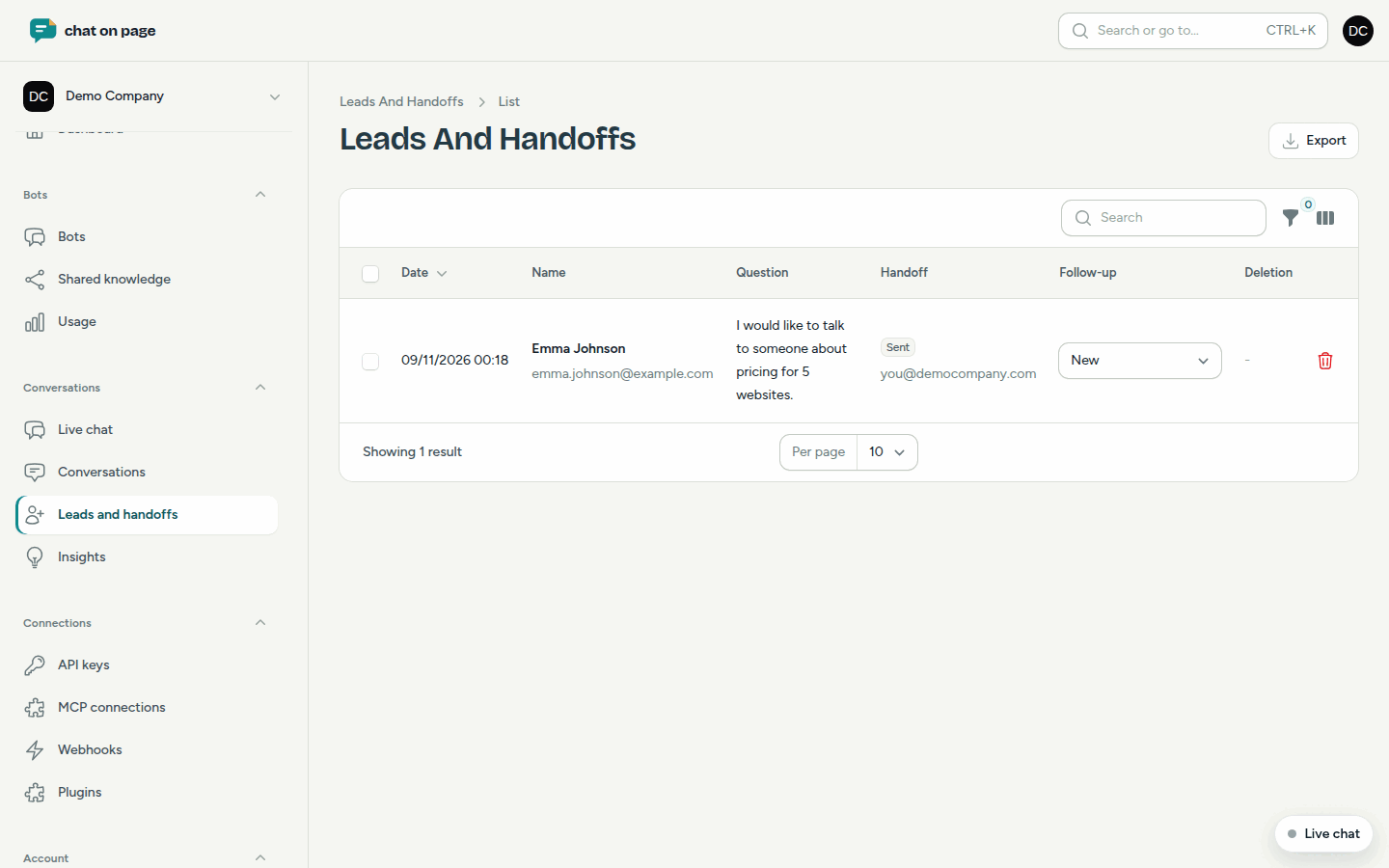
In the main menu, select Conversations > Leads and handoffs. For each lead, you see:
- Date, Name with email address and phone number, and the Question. For a quote request, the answers are listed below.
- Handoff: the status of the email, such as Queued, Sent, or Failed, along with the address it was sent to.
- Follow-up: set this yourself to New, Contacted, or Completed.
Click on a lead to open the full conversation. Use the filters to display, for example, only leads with a specific Follow-up status, or Quote requests only.
Export
- Optionally, set filters.
- Click Export at the top. You will receive a CSV file containing the leads from the list, which you can open in Excel.
If you only want to export specific leads, select them and choose Export (CSV). Exporting is only possible if your role allows it (see Team).
Good to know
- Leads are also sent to connected systems such as your CRM, Slack, or Teams, and to webhooks (see Integrations and Webhooks).
- Team members who have the notification New leads (someone wants to be contacted) enabled will receive a copy of the email (see Profile and notifications).
- Delete schedules a lead for removal. After 7 days, the name, email address, and phone number are permanently deleted. The conversation itself remains. Until then, you can cancel the deletion.
- A reservation is not a lead. You can find those under Reservations.