
View and follow up on conversations
Read all your bot’s conversations, see which sources the bot used and how visitors rated the answers, and improve the bot where necessary.
Under Conversations, you can read every conversation from your bots. You’ll see what visitors asked, how the bot responded, and which sources it used. This way, you know where the bot works well and where it can improve.
The list
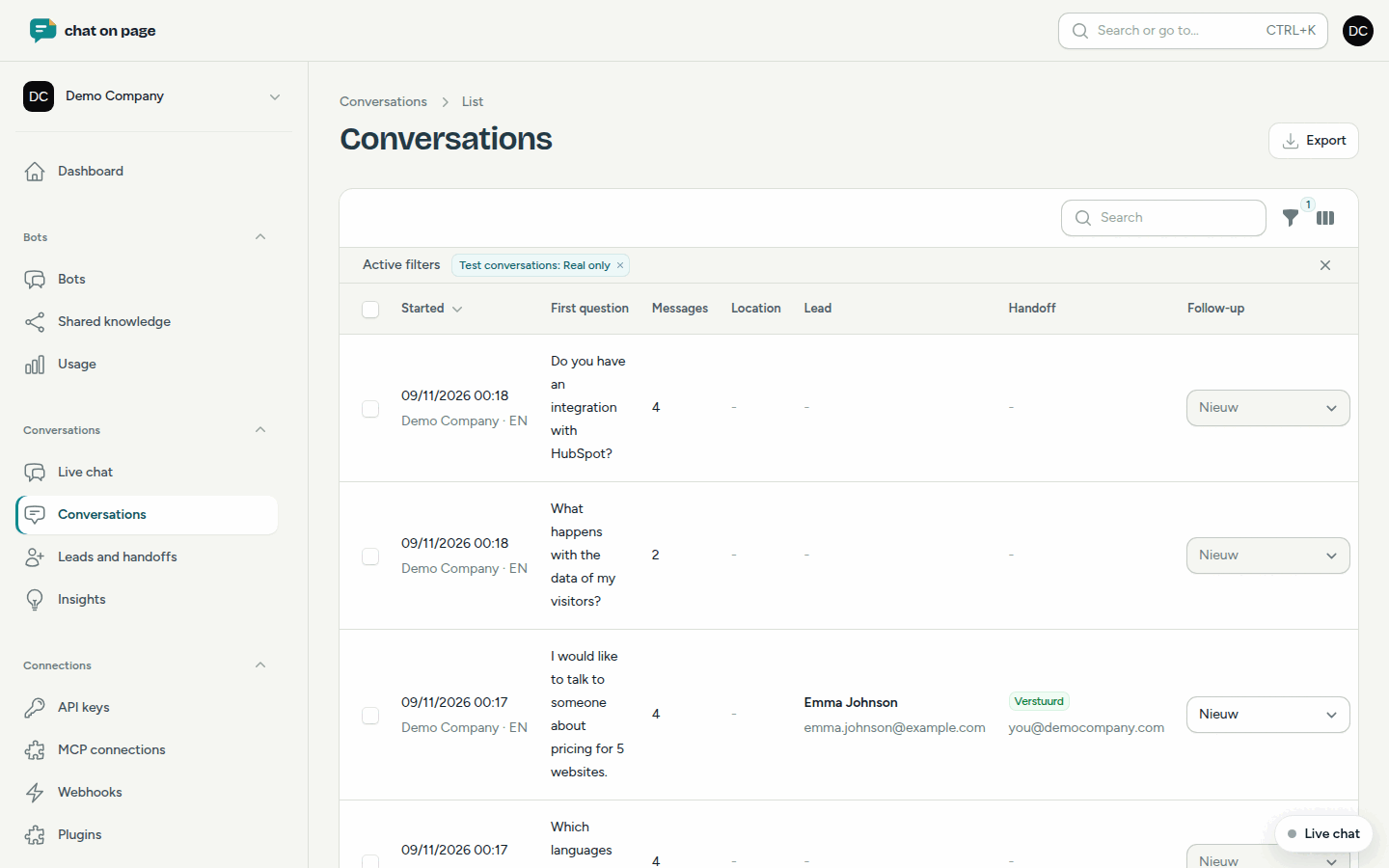
In the main menu, select Conversations > Conversations. For each conversation, you’ll see details such as when it was Started, the First question, the number of Messages, any Lead, and the visitor’s Feedback (thumbs up or down).
Use the filters to search specifically, for example by Bot, With handoff, Lead follow-up, Rating, Label, or Thumbs down. Test conversations from Try it out are hidden by default. You can show them using the Test conversations filter.
Opening a conversation
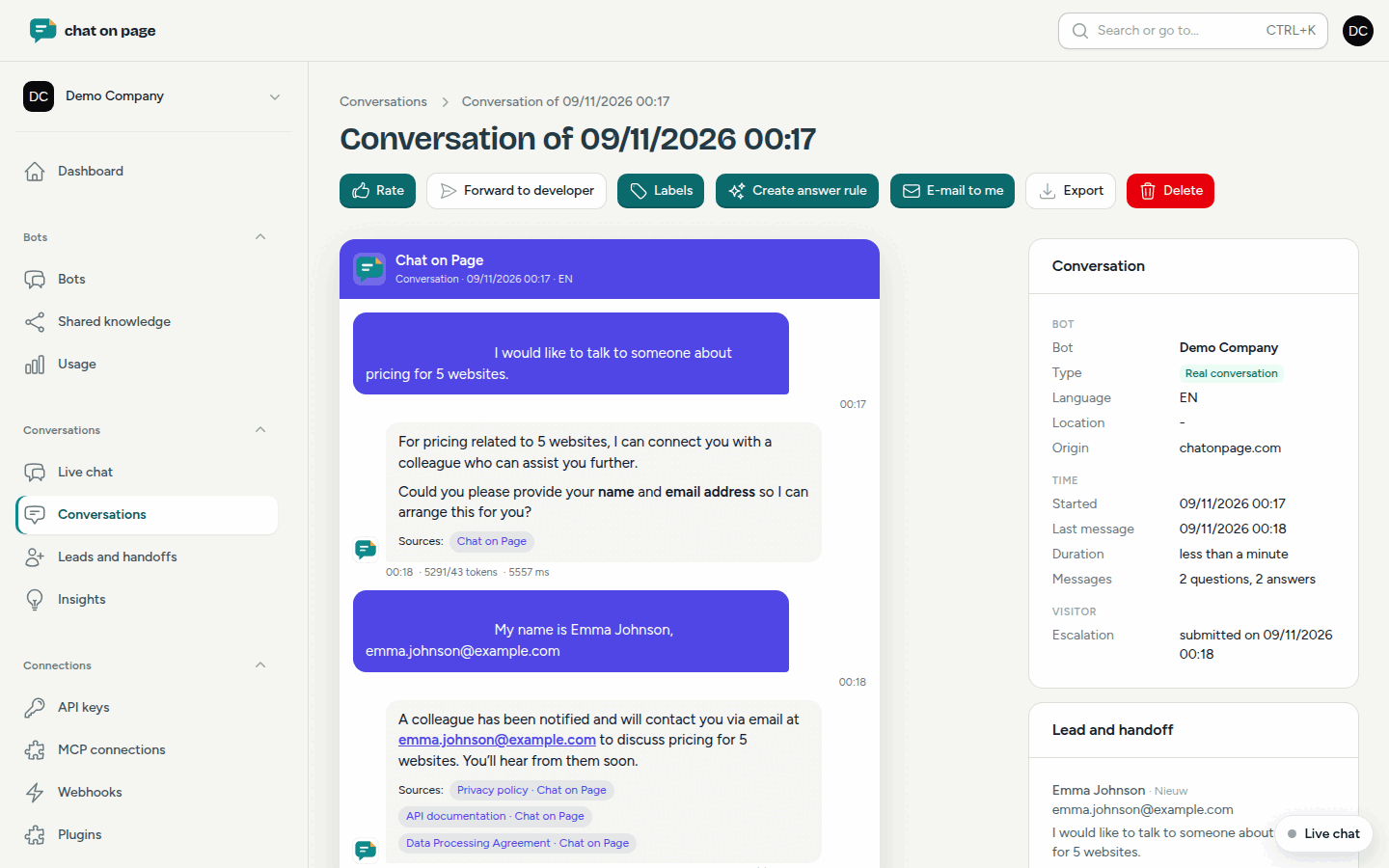
Click on a conversation or on View. You’ll see the entire conversation as the visitor saw it, including:
- the Sources the bot used under each answer;
- the visitor’s thumbs-up or thumbs-down for an answer;
- whether an answer rule or choice flow played a role;
- next to the conversation: the bot, language, location, Origin (the site where the chat took place), and any lead with the handoff status.
What you can do with a conversation
- Rate: mark the conversation as Good or Not good, with a note.
- Labels: add free-form labels, such as "Followed up by Pauline". You can then filter by these.
- Create answer rule: if an answer was not good, immediately create a rule using the visitor’s question as an example.
- Forward to developer: the conversation and your comment are sent to the Chat on Page team, who will investigate what the bot did wrong.
- E-mail to me: the conversation is sent to your inbox.
- Export: download the conversation, if your role allows it.
A visitor can also ask the bot to e-mail the conversation to them.
Storing and deleting
- Conversations are anonymised after a set period: names, e-mail addresses, phone numbers, and other personal data are removed. By default, this happens after 90 days. You can choose a period between 30 days and 1 year under Anonymise conversations after in your account settings. Leads are retained.
- Use Delete to schedule a conversation for removal. After 7 days, it is permanently deleted, including messages, leads, transfers, and complaints or bug reports. Until then, you can reverse this with Cancel deletion.
Good to know
- Want to know what the questions are about without reading everything? Check Insights.
- Conversations with a question for your team can also be found under Leads and handoffs.