
Live chat with staff
Let visitors who ask for a staff member chat immediately with a colleague who is online. If no one is available, the question will be sent by email as usual.
If a visitor asks for a staff member, the bot will immediately connect them to a colleague who is Online. If no one is available, the question will be sent by email as usual with a suggested reply. Live chat is enabled by default.
Configure per bot
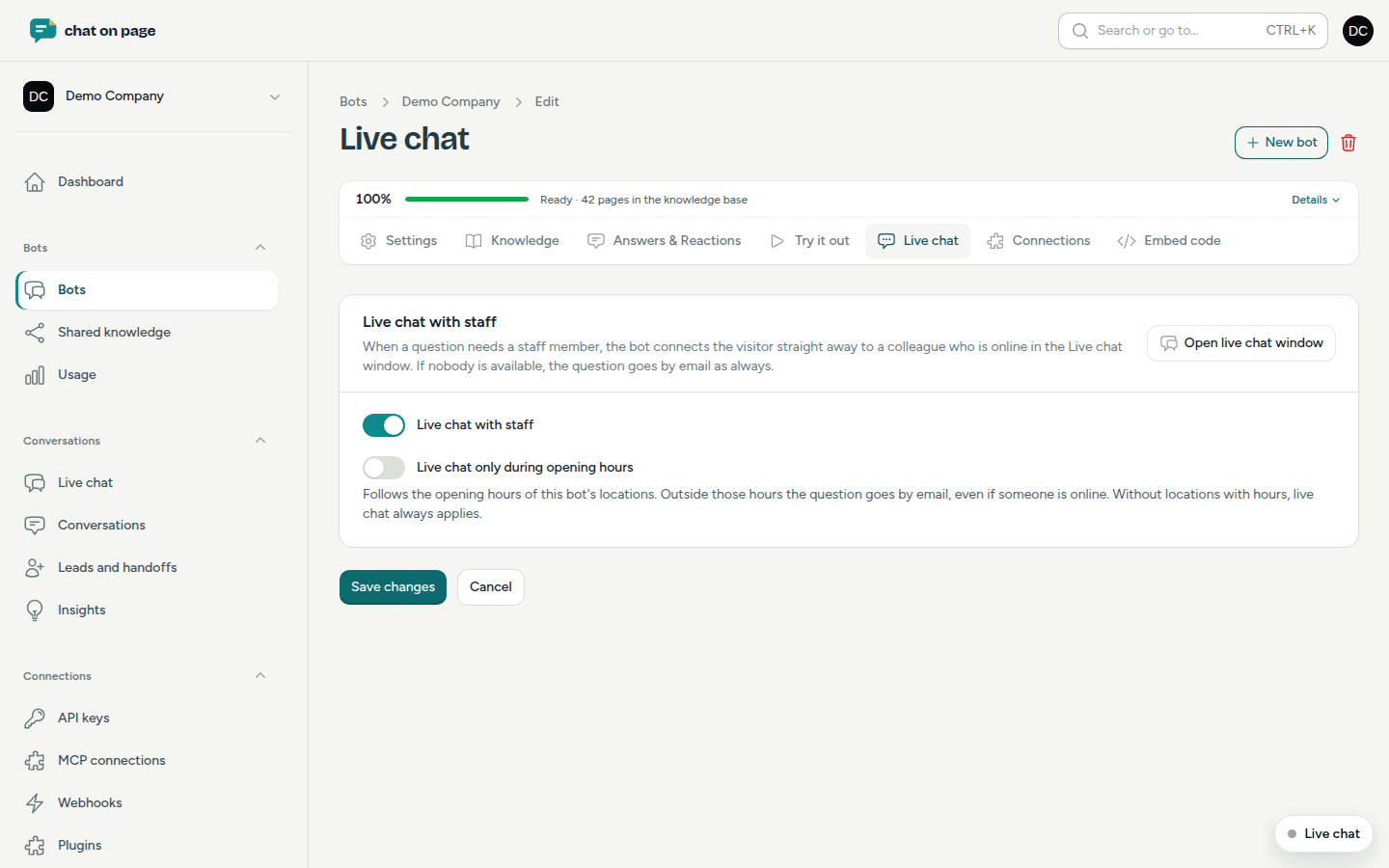
- Open your bot and click on Live chat at the top.
- Leave Live chat with staff enabled, or disable it if this bot should never transfer calls.
- Optionally, enable Live chat only during opening hours. This follows the opening hours of the bot’s locations. Outside these hours, the question will be sent by email, even if someone is online.
- Click save.
Go online and chat
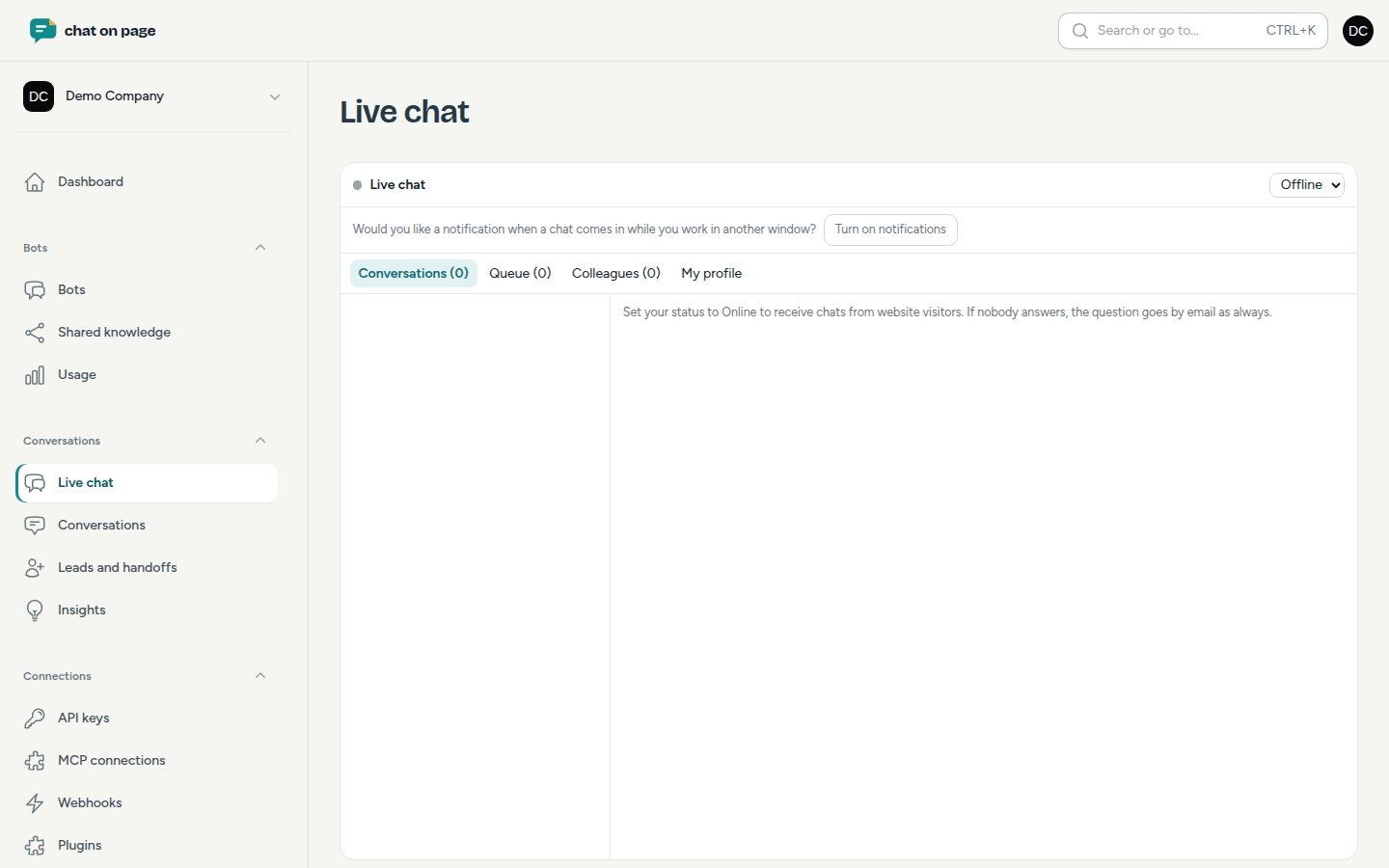
- In the main menu, select Conversations > Live chat.
- Set your Status to Online. When a chat comes in, you will hear a ringtone.
- Click Turn on notifications if you also want a notification while working in another window.
- Click Accept to take the call. Anyone in the Queue can be taken by you with Take.
The visitor will be given the choice between Chat with a colleague now or By email instead, and will provide their name and email address. After that, you will see the conversation with the bot so far.
In an ongoing conversation, you can:
- Transfer the conversation to a colleague or to a specialisation, with a note and a summary;
- End: the bot takes over again;
- Reply later by email: the question will be sent by email to your team, including the conversation so far.
If the visitor writes in a different language, you type in your own language and your reply will be translated for the visitor. You can still adjust the translation.
Your profile for live chat
In the window, you set your Specialisations (e.g. Billing, Technical), your Languages, How many chats at once you accept, and whether you want Chats from all bots.
The live chat app
With the app, you receive live chats even when the portal is not open: an incoming call will make your phone ring. If you see Live chat app in the menu, open that page, click Show QR code, and scan the code with the app (Connect). Under Linked devices, you can Unlink a device.
Good to know
- If no one takes a call, it will go to the next available colleague. Anyone who ignores a call will be set to Away and will not receive any more calls until they are Online again.
- If live chat is not possible (no one available, waited too long, the visitor prefers email), the usual email will follow.
- Every transfer also appears as a lead under Leads and handoffs.